> ## Documentation Index
> Fetch the complete documentation index at: https://docs.etho.net/llms.txt
> Use this file to discover all available pages before exploring further.
# Build a sales-call funnel
> Use the Wireframe beta skill to draft a sales page, booking page, and call confirmation.
Plan a funnel that helps a visitor understand your offer, book a sales call, and prepare for the conversation. This example uses the [Wireframe beta skill](/labs/skills/wireframe) to draft each page in Agent chat.
**Beta:** Generate one page at a time. Each result is a saved wireframe.
Connecting the pages, calendar, and follow-up happens separately in Build. Use
Agent chat on desktop; if `/wireframe` is missing, contact
[Support](mailto:support@etho.net) to check availability.
## The original Olympus example
This preview comes from the saved **Olympus · Approved page wireframe reference**, created as a visual reference in September 2026. It keeps the original sales-page copy in place and uses outlined placeholders to describe the visuals.
The full reference includes the opening headline, proof, the problem and solution, product explanations, pricing, and calls to action. Use it to see how written copy and visual briefs fit together.
This is a historical design example. Its prices, results, guarantees, and
product claims are reference copy, not current product documentation or
evidence to reuse for your business. It is not an output generated by the
current beta skill.
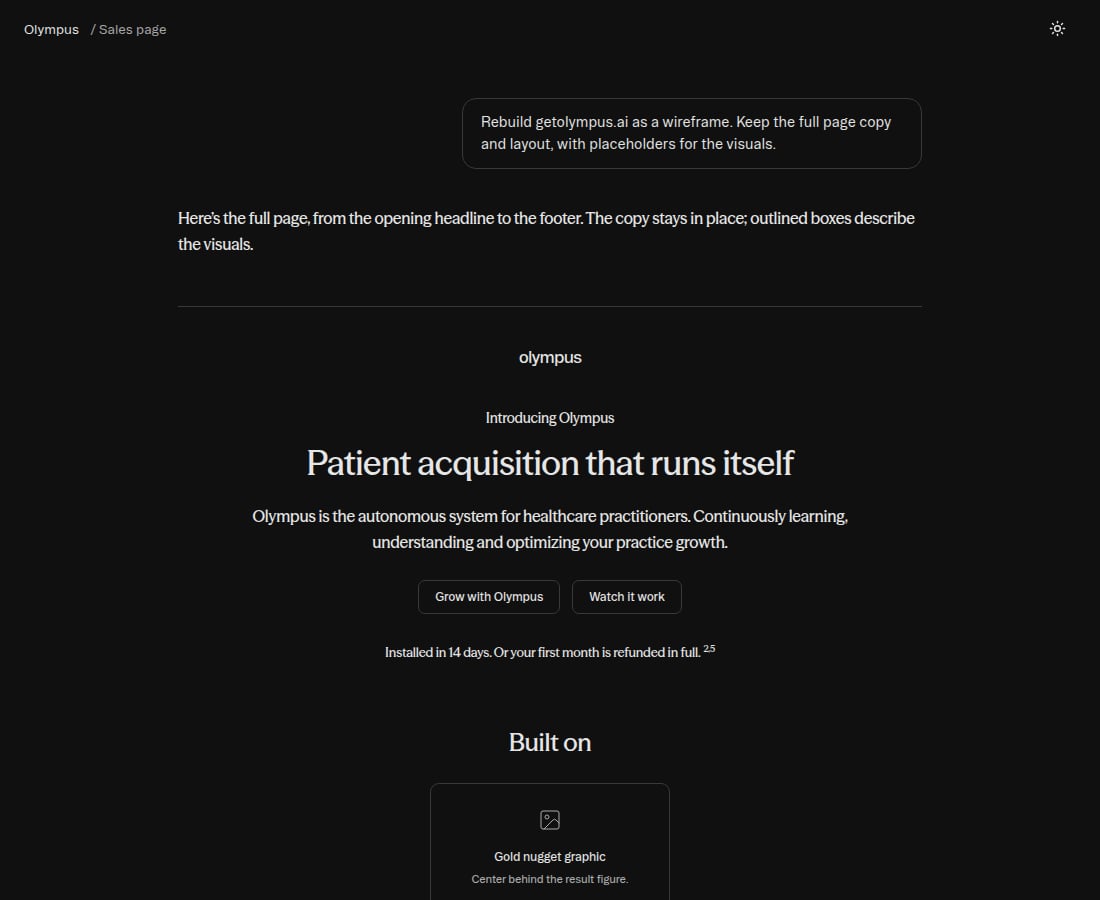 [View the full original page](/images/labs/olympus-sales-page-full.png) to inspect the section order, copy, and asset briefs. The preview is a static image; its controls do not accept bookings.
## Recreate an existing page
To wireframe another site's page, select `/wireframe` and send its exact public URL:
```text theme={null}
Recreate https://example.com/sales as a wireframe.
Keep its original copy and layout. Use outlined placeholders
for media and components in the same positions.
```
The agent captures that page's content and desktop/mobile views through Context.dev. You do not need to choose your own offer or audience. The Olympus example above illustrates the wireframe presentation; its text does not replace the page you supplied.
## Plan a new funnel
| Page | Visitor's next step | Wireframe page type |
| - | - | - |
| Sales page | Understand the offer and choose to book a call | Sales |
| Booking page | Choose an appointment | Landing, with a calendar placeholder |
| Confirmation page | Review what to expect and prepare for the call | Confirmation |
Before starting, choose your offer and audience. Decide what the call is for and gather any approved proof you want to include. Leave unavailable testimonials, prices, or guarantees as placeholders.
## Draft the pages in chat
Type `/wireframe`, select **Wireframe**, and send this brief after adapting it to your offer:
```text theme={null}
Create a sales-page wireframe for our consultation offer, aimed at
small-business owners. The goal is to book a sales call.
Use our saved brand context and the offer and audience I select.
Include a hero, the problem, our approach, benefits, how the call works,
who it is for, proof placeholders, FAQs, and a final booking CTA.
Use "Book a sales call" for the main CTA. Add briefs for a short
explainer video and any missing visuals. Use only approved proof;
leave missing evidence as placeholders.
```
Answer any questions and approve the action if prompted. Review the completed page before continuing.
Select `/wireframe` again and request a separate page:
```text theme={null}
Create a landing-page wireframe for the booking step of the same
sales-call funnel. Keep the offer, audience, and tone consistent.
Include a headline, a short explanation of the call, a calendar
placeholder, and practical booking FAQs. The calendar brief should
say that a confirmed booking leads to the confirmation page.
Leave unknown call duration or availability as details to confirm.
```
The calendar placeholder describes the required connection. You will configure the working calendar when you finish the funnel.
Select `/wireframe` and send:
```text theme={null}
Create a confirmation-page wireframe for visitors who have booked
a sales call for this offer. Include a confirmation heading, a
placeholder for appointment details, what to prepare, and a short
pre-call video brief. Include placeholders for rescheduling and
contact details that still need to be connected.
```
Check that the copy matches what your team will actually send and discuss. Appointment details remain placeholders until you connect the booking flow.
## Refine the result
Select a copy field to edit it and click **Save**, or ask for a scoped revision:
```text theme={null}
On the sales-page wireframe, rewrite only the "how the call works"
section. Make it clear that we will discuss the visitor's goals and
whether the offer fits. Keep every other section unchanged.
```
Each save creates a new version. When you are ready to review with your team, use **Download HTML** or **Print / Save as PDF** on each saved page.
## Finish the funnel in Build
Start with the sales-page version you want to use:
```text theme={null}
Create a Build draft from this sales-page wireframe.
```
After any required approval, open the draft in [Build](/modules/build/funnels). Use the booking and confirmation wireframes as references for the remaining funnel steps. The beta handoff creates a new draft from one page; it does not automatically assemble these three artifacts into a connected funnel.
Before publishing:
* Add the booking and confirmation steps and connect the sales-page CTA to booking.
* Configure the calendar and its confirmation destination.
* Replace visual placeholders and confirm any appointment details, links, and follow-up messages.
* Preview the complete journey and verify that a test booking reaches the intended confirmation page.
Publish through the normal Build workflow after you have checked the connections.
This documentation is built and hosted on [Mintlify](https://mintlify.com), a developer documentation platform.
[View the full original page](/images/labs/olympus-sales-page-full.png) to inspect the section order, copy, and asset briefs. The preview is a static image; its controls do not accept bookings.
## Recreate an existing page
To wireframe another site's page, select `/wireframe` and send its exact public URL:
```text theme={null}
Recreate https://example.com/sales as a wireframe.
Keep its original copy and layout. Use outlined placeholders
for media and components in the same positions.
```
The agent captures that page's content and desktop/mobile views through Context.dev. You do not need to choose your own offer or audience. The Olympus example above illustrates the wireframe presentation; its text does not replace the page you supplied.
## Plan a new funnel
| Page | Visitor's next step | Wireframe page type |
| - | - | - |
| Sales page | Understand the offer and choose to book a call | Sales |
| Booking page | Choose an appointment | Landing, with a calendar placeholder |
| Confirmation page | Review what to expect and prepare for the call | Confirmation |
Before starting, choose your offer and audience. Decide what the call is for and gather any approved proof you want to include. Leave unavailable testimonials, prices, or guarantees as placeholders.
## Draft the pages in chat
Type `/wireframe`, select **Wireframe**, and send this brief after adapting it to your offer:
```text theme={null}
Create a sales-page wireframe for our consultation offer, aimed at
small-business owners. The goal is to book a sales call.
Use our saved brand context and the offer and audience I select.
Include a hero, the problem, our approach, benefits, how the call works,
who it is for, proof placeholders, FAQs, and a final booking CTA.
Use "Book a sales call" for the main CTA. Add briefs for a short
explainer video and any missing visuals. Use only approved proof;
leave missing evidence as placeholders.
```
Answer any questions and approve the action if prompted. Review the completed page before continuing.
Select `/wireframe` again and request a separate page:
```text theme={null}
Create a landing-page wireframe for the booking step of the same
sales-call funnel. Keep the offer, audience, and tone consistent.
Include a headline, a short explanation of the call, a calendar
placeholder, and practical booking FAQs. The calendar brief should
say that a confirmed booking leads to the confirmation page.
Leave unknown call duration or availability as details to confirm.
```
The calendar placeholder describes the required connection. You will configure the working calendar when you finish the funnel.
Select `/wireframe` and send:
```text theme={null}
Create a confirmation-page wireframe for visitors who have booked
a sales call for this offer. Include a confirmation heading, a
placeholder for appointment details, what to prepare, and a short
pre-call video brief. Include placeholders for rescheduling and
contact details that still need to be connected.
```
Check that the copy matches what your team will actually send and discuss. Appointment details remain placeholders until you connect the booking flow.
## Refine the result
Select a copy field to edit it and click **Save**, or ask for a scoped revision:
```text theme={null}
On the sales-page wireframe, rewrite only the "how the call works"
section. Make it clear that we will discuss the visitor's goals and
whether the offer fits. Keep every other section unchanged.
```
Each save creates a new version. When you are ready to review with your team, use **Download HTML** or **Print / Save as PDF** on each saved page.
## Finish the funnel in Build
Start with the sales-page version you want to use:
```text theme={null}
Create a Build draft from this sales-page wireframe.
```
After any required approval, open the draft in [Build](/modules/build/funnels). Use the booking and confirmation wireframes as references for the remaining funnel steps. The beta handoff creates a new draft from one page; it does not automatically assemble these three artifacts into a connected funnel.
Before publishing:
* Add the booking and confirmation steps and connect the sales-page CTA to booking.
* Configure the calendar and its confirmation destination.
* Replace visual placeholders and confirm any appointment details, links, and follow-up messages.
* Preview the complete journey and verify that a test booking reaches the intended confirmation page.
Publish through the normal Build workflow after you have checked the connections.
This documentation is built and hosted on [Mintlify](https://mintlify.com), a developer documentation platform.