> ## Documentation Index
> Fetch the complete documentation index at: https://docs.etho.net/llms.txt
> Use this file to discover all available pages before exploring further.
# LeadConnector
> Connect your GoHighLevel CRM to sync forms and calendars for funnel lead capture
LeadConnector connects your GoHighLevel (GHL) CRM to Olympus, letting your funnels use GHL forms and calendars for lead capture and appointment booking.
You need an active GoHighLevel / LeadConnector account with forms and calendars already created in your sub-account. Olympus fetches these resources from GHL — it does not create them.
## How to connect LeadConnector
Click **Integrations** in the sidebar to open the integrations page.
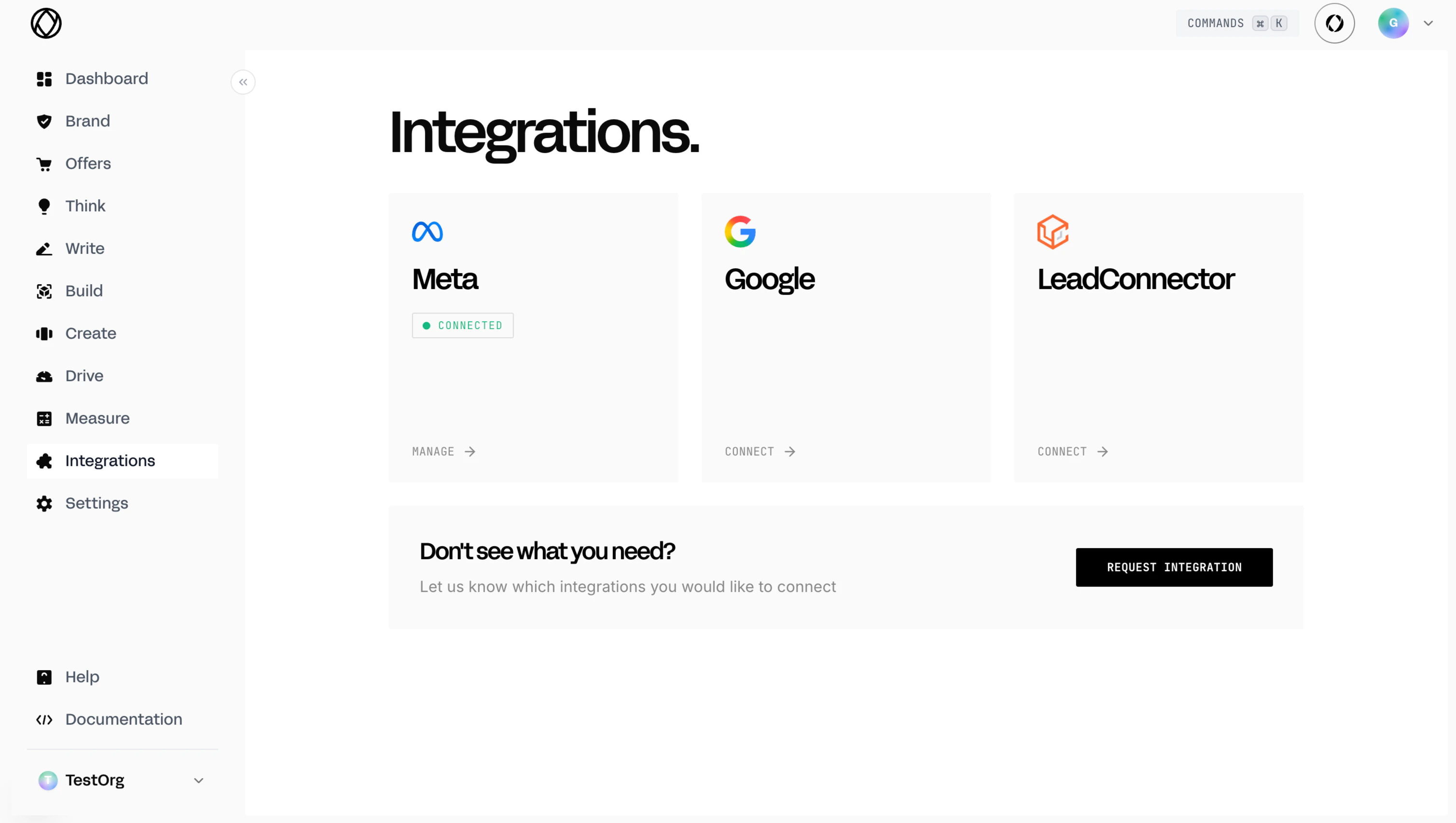
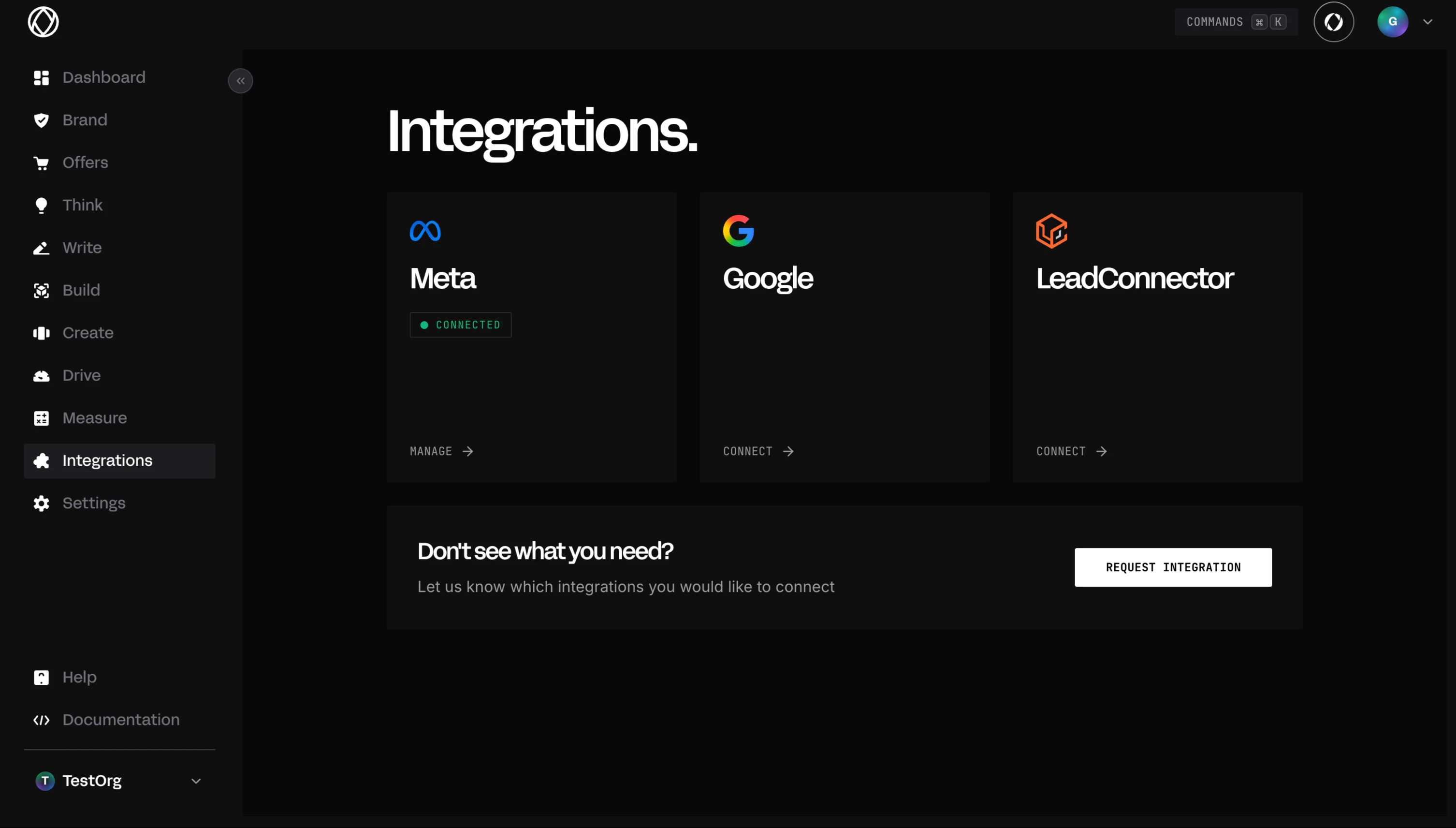 Click **Connect** on the LeadConnector card. You will be redirected to the GoHighLevel login page.
Enter your GoHighLevel credentials to log in.
Click **Connect** on the LeadConnector card. You will be redirected to the GoHighLevel login page.
Enter your GoHighLevel credentials to log in.
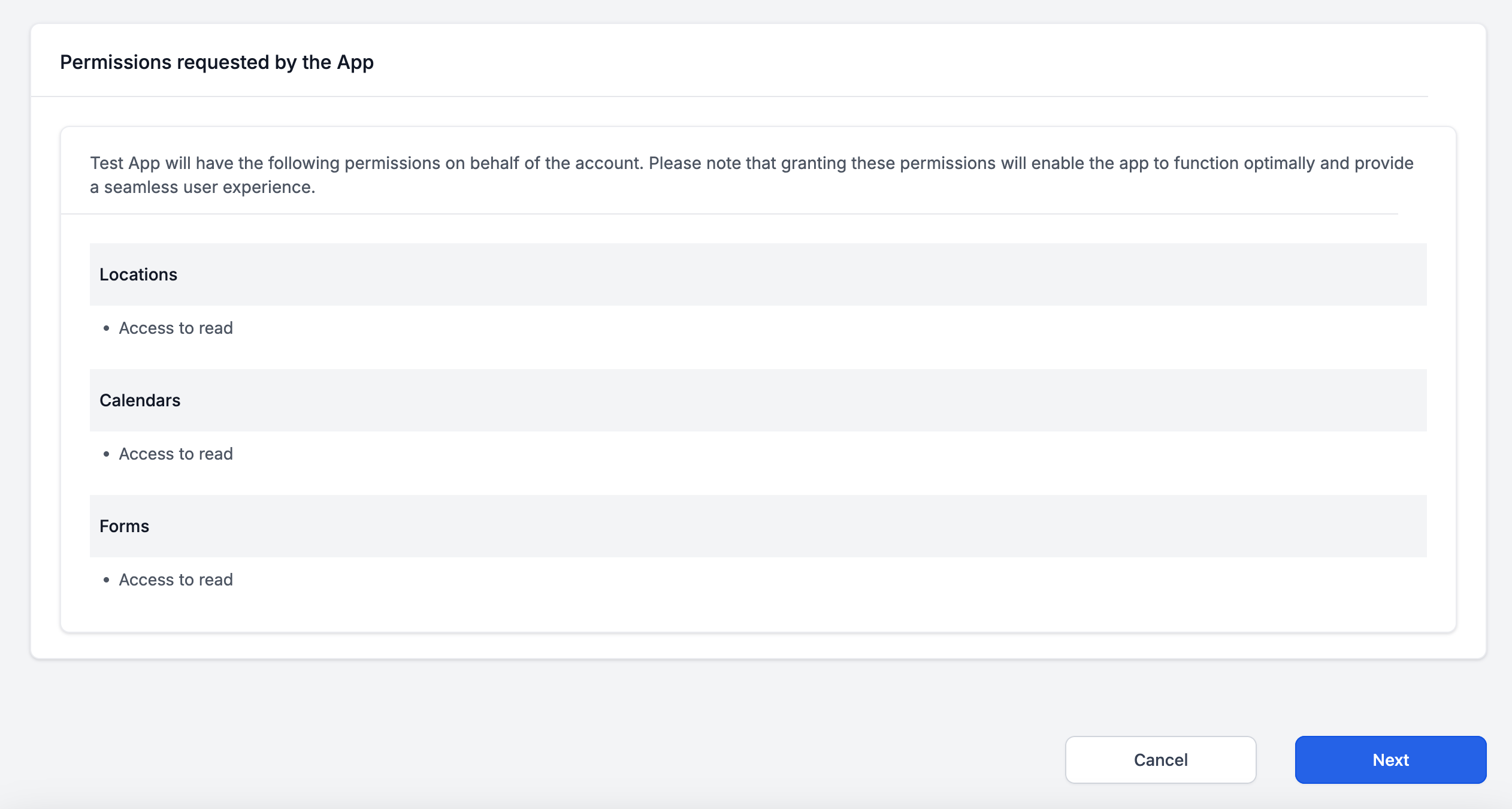
 Click **Allow** to grant Olympus access to your LeadConnector account.
 Choose the sub-account you want to connect to Olympus.
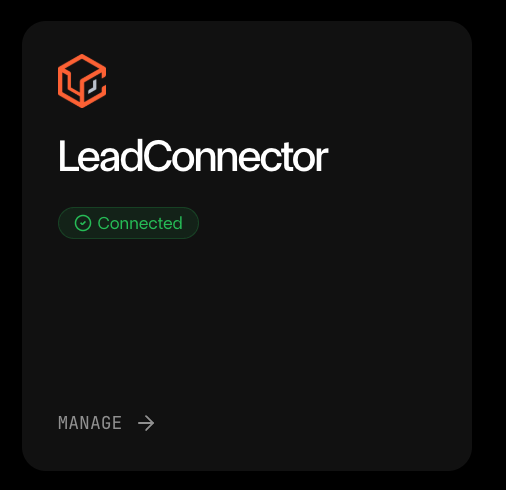
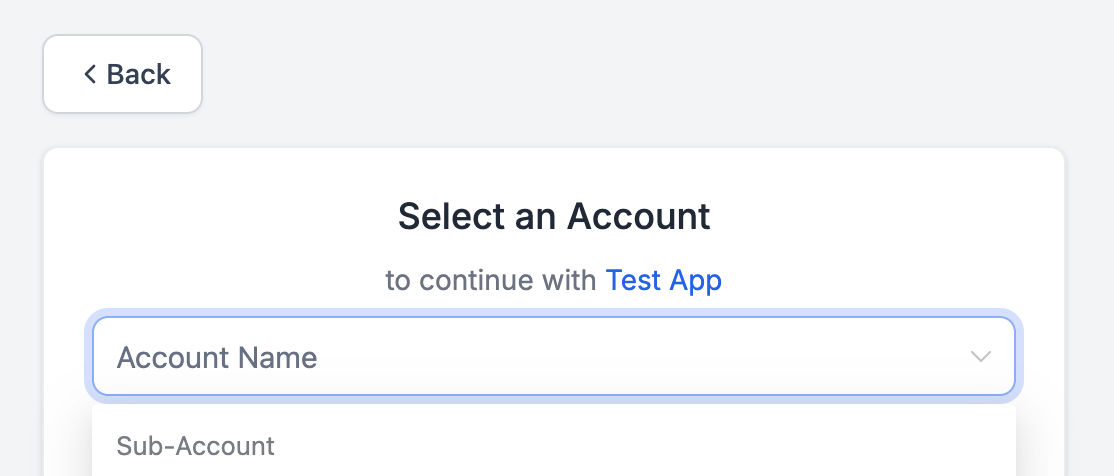 You are redirected back to Olympus with a success confirmation. The LeadConnector card now shows a **Connected** badge with your sub-account name.
 ## How to use LeadConnector in the funnel builder
Go to **Build > Funnels** and click **Create Funnels** to start the funnel wizard.
On Step 7 (**LeadConnector**), select your existing GHL signup form, qualification form, and booking calendar from the dropdown menus.
## How to use LeadConnector in the funnel builder
Go to **Build > Funnels** and click **Create Funnels** to start the funnel wizard.
On Step 7 (**LeadConnector**), select your existing GHL signup form, qualification form, and booking calendar from the dropdown menus.
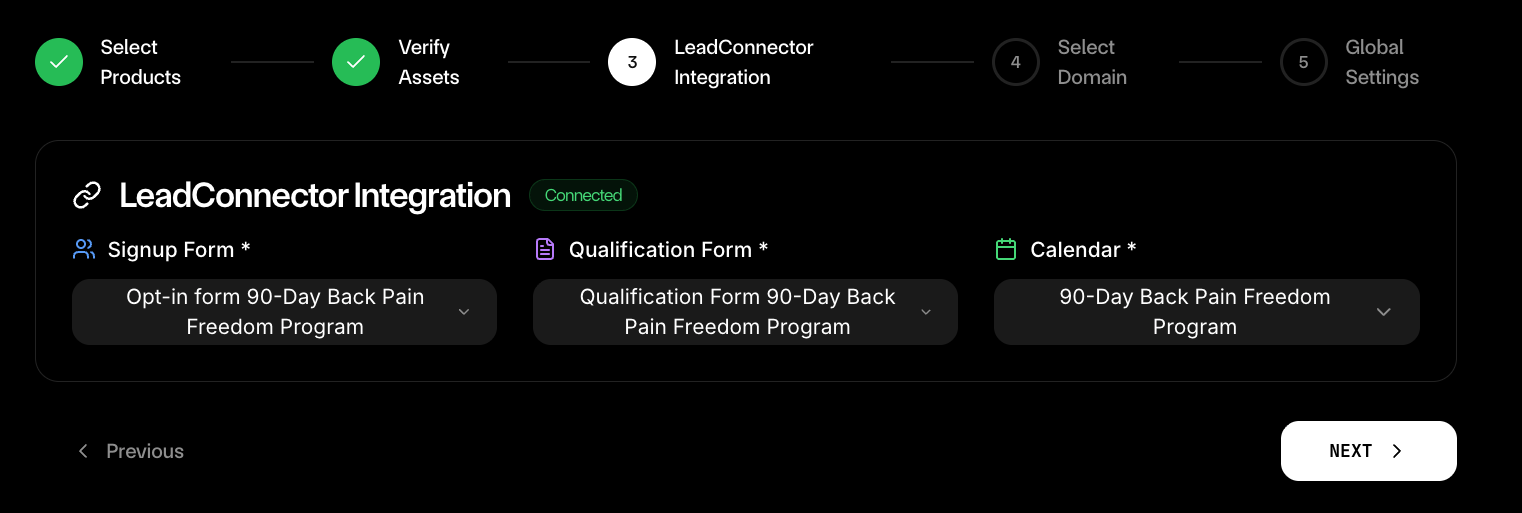 Finish the remaining funnel steps and publish your funnel. Your GHL forms and calendar are now embedded in the funnel pages.
## How to disconnect LeadConnector
On the Integrations page, click **Manage** on the LeadConnector card.
A pop-up warns that disconnecting will:
* Stop all active campaigns on this platform
* Pause automated syncing of data
* Remove access to LeadConnector analytics
Finish the remaining funnel steps and publish your funnel. Your GHL forms and calendar are now embedded in the funnel pages.
## How to disconnect LeadConnector
On the Integrations page, click **Manage** on the LeadConnector card.
A pop-up warns that disconnecting will:
* Stop all active campaigns on this platform
* Pause automated syncing of data
* Remove access to LeadConnector analytics
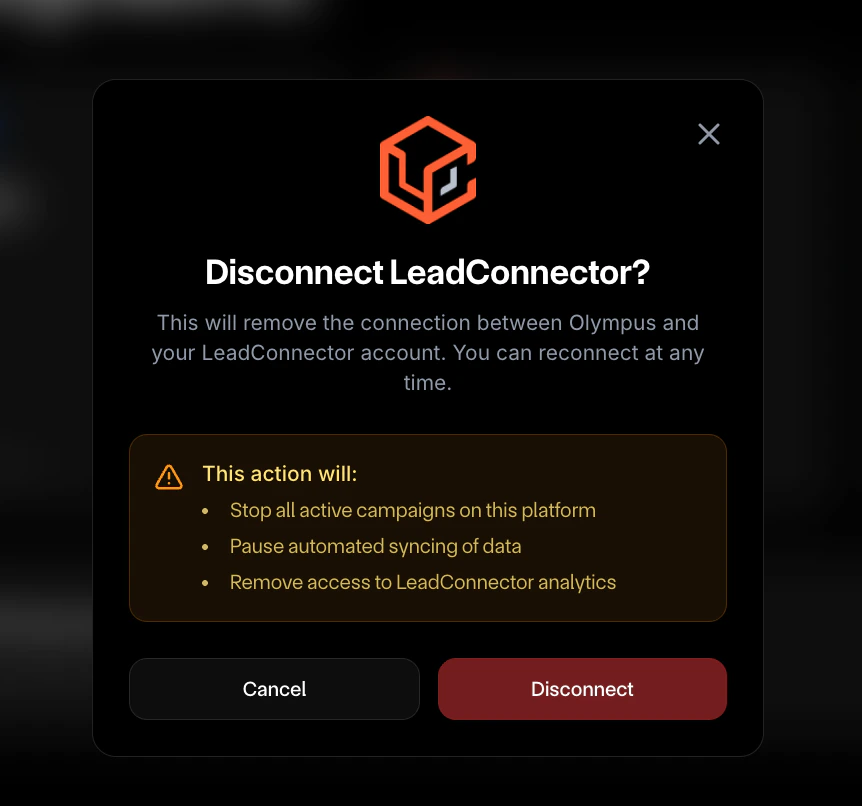 Click **Disconnect** to confirm, or **Cancel** to keep the connection. You can reconnect at any time.
## Reference
| UI Element | Meaning |
| ------------------- | --------------------------------------------- |
| **CONNECT** button | Not connected — click to start the OAuth flow |
| **CONNECTED** badge | Successfully linked to a GHL sub-account |
| **MANAGE** button | Opens the disconnect pop-up |
| **CONNECTING...** | OAuth redirect in progress |
Make sure your GHL forms and calendars exist in your sub-account before connecting. Olympus pulls them via API but cannot create them.
If the OAuth flow fails, check that your GHL account has at least one sub-account. The error toast will indicate the specific issue.
## What to do next
Set up Meta integration to connect your ad accounts — see [Meta Integration](/modules/integrations/meta).
Click **Disconnect** to confirm, or **Cancel** to keep the connection. You can reconnect at any time.
## Reference
| UI Element | Meaning |
| ------------------- | --------------------------------------------- |
| **CONNECT** button | Not connected — click to start the OAuth flow |
| **CONNECTED** badge | Successfully linked to a GHL sub-account |
| **MANAGE** button | Opens the disconnect pop-up |
| **CONNECTING...** | OAuth redirect in progress |
Make sure your GHL forms and calendars exist in your sub-account before connecting. Olympus pulls them via API but cannot create them.
If the OAuth flow fails, check that your GHL account has at least one sub-account. The error toast will indicate the specific issue.
## What to do next
Set up Meta integration to connect your ad accounts — see [Meta Integration](/modules/integrations/meta).