

Beta: Generate one page at a time. Each result is a saved wireframe.
Connecting the pages, calendar, and follow-up happens separately in Build. Use
Agent chat on desktop; if
/wireframe is missing, contact
Support to check availability.The original Olympus example
This preview comes from the saved Olympus · Approved page wireframe reference, created as a visual reference in September 2026. It keeps the original sales-page copy in place and uses outlined placeholders to describe the visuals. The full reference includes the opening headline, proof, the problem and solution, product explanations, pricing, and calls to action. Use it to see how written copy and visual briefs fit together.This is a historical design example. Its prices, results, guarantees, and
product claims are reference copy, not current product documentation or
evidence to reuse for your business. It is not an output generated by the
current beta skill.
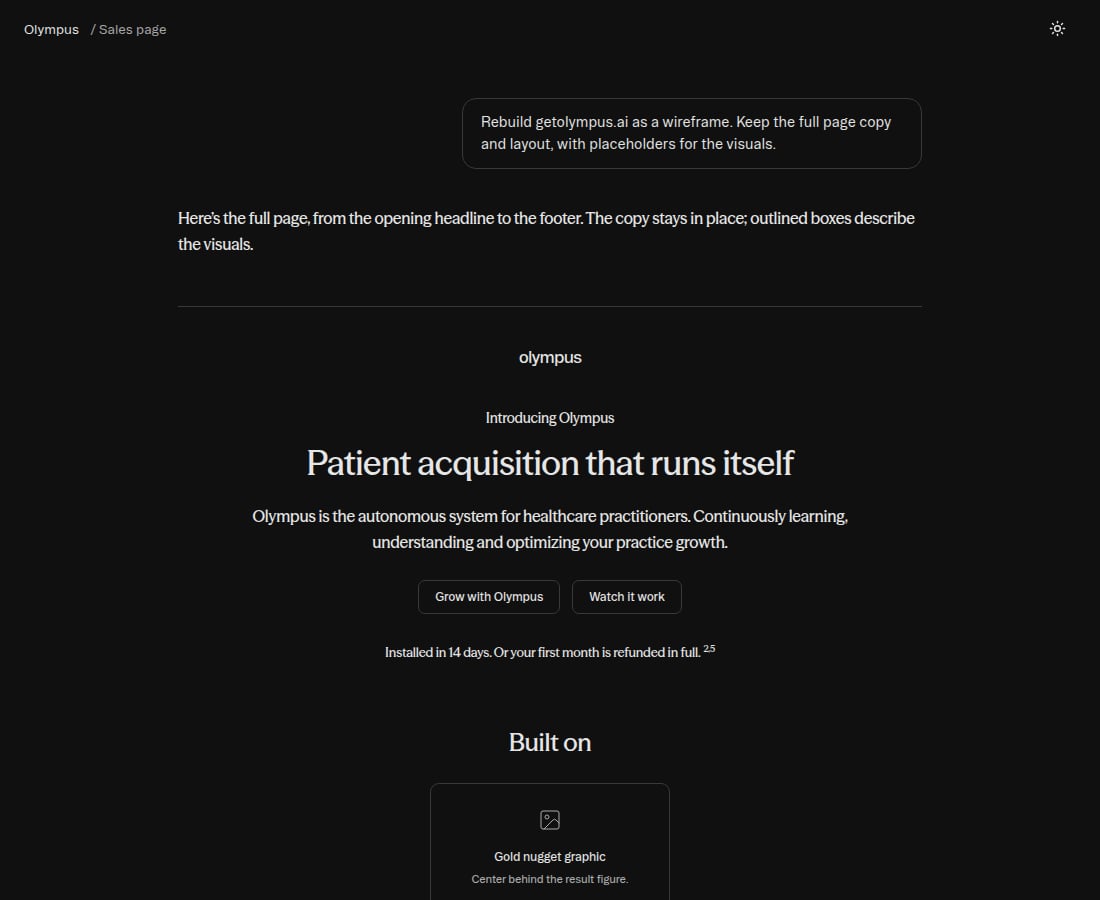
The opening of the original Olympus sales-page wireframe, captured from the saved HTML.

Recreate an existing page
To wireframe another site’s page, select/wireframe and send its exact public URL:
Plan a new funnel
Before starting, choose your offer and audience. Decide what the call is for and gather any approved proof you want to include. Leave unavailable testimonials, prices, or guarantees as placeholders.
Draft the pages in chat
1
Create the sales page
Type Answer any questions and approve the action if prompted. Review the completed page before continuing.
/wireframe, select Wireframe, and send this brief after adapting it to your offer:2
Draft the booking page
Select The calendar placeholder describes the required connection. You will configure the working calendar when you finish the funnel.
/wireframe again and request a separate page:3
Draft the confirmation page
Select Check that the copy matches what your team will actually send and discuss. Appointment details remain placeholders until you connect the booking flow.
/wireframe and send:Refine the result
Select a copy field to edit it and click Save, or ask for a scoped revision:Finish the funnel in Build
Start with the sales-page version you want to use:- Add the booking and confirmation steps and connect the sales-page CTA to booking.
- Configure the calendar and its confirmation destination.
- Replace visual placeholders and confirm any appointment details, links, and follow-up messages.
- Preview the complete journey and verify that a test booking reaches the intended confirmation page.