Meta integration connects your Facebook and Instagram advertising accounts to Olympus, enabling automated campaign management, audience targeting, and performance tracking. This guide walks you through the complete System User Token flow for secure, long-term API access.
Prerequisites
Facebook Account Required You need an active Facebook account to create a Business Portfolio and complete the integration setup.
Step 1: Create a Business Portfolio Create your Meta Business Portfolio to manage all your business assets in one place.
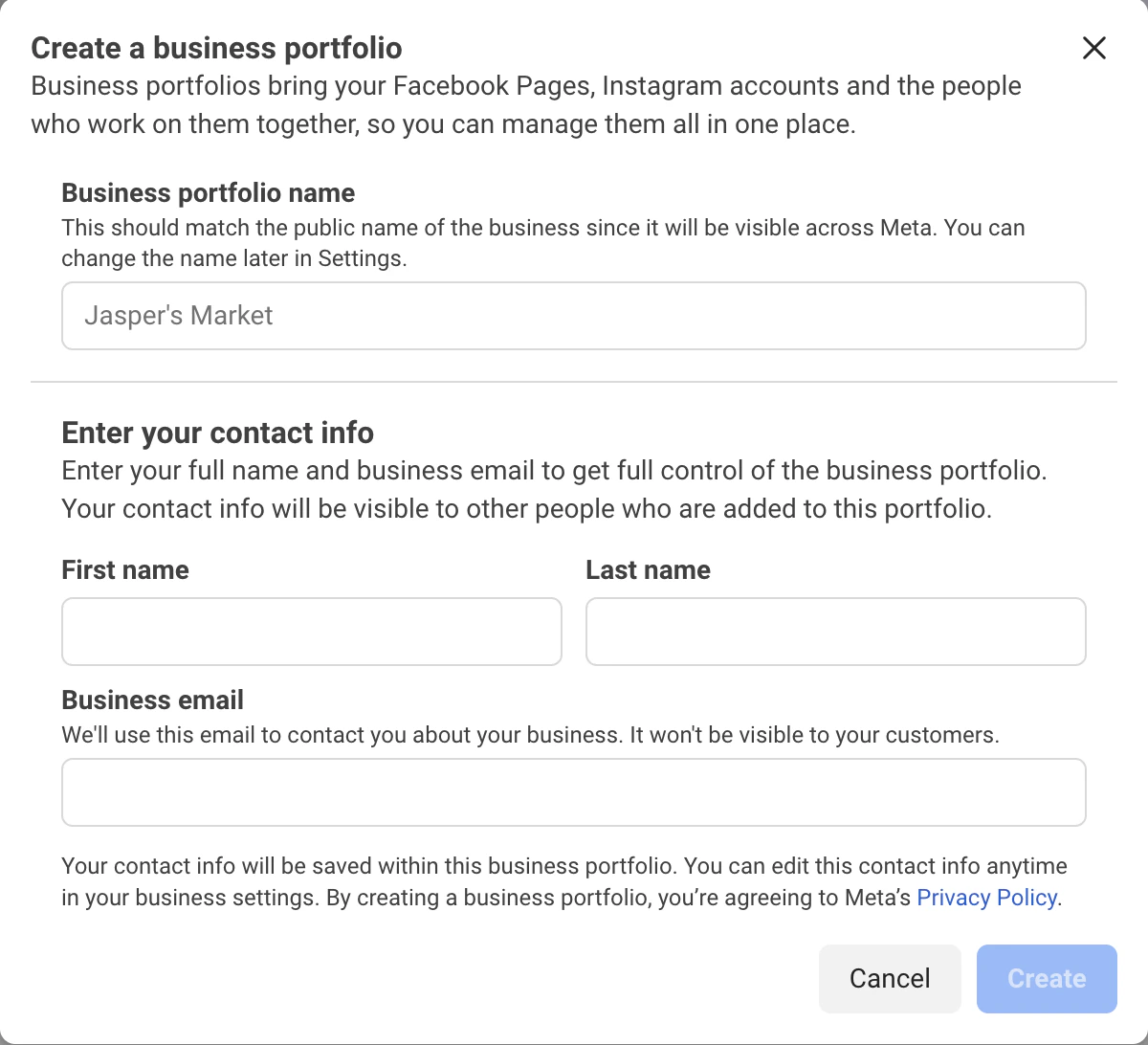
Create Your Portfolio
Fill in the required form to create your business portfolio with your business name and details. Step 2: Add a Facebook Page Connect or create a Facebook Page for your business within your portfolio.
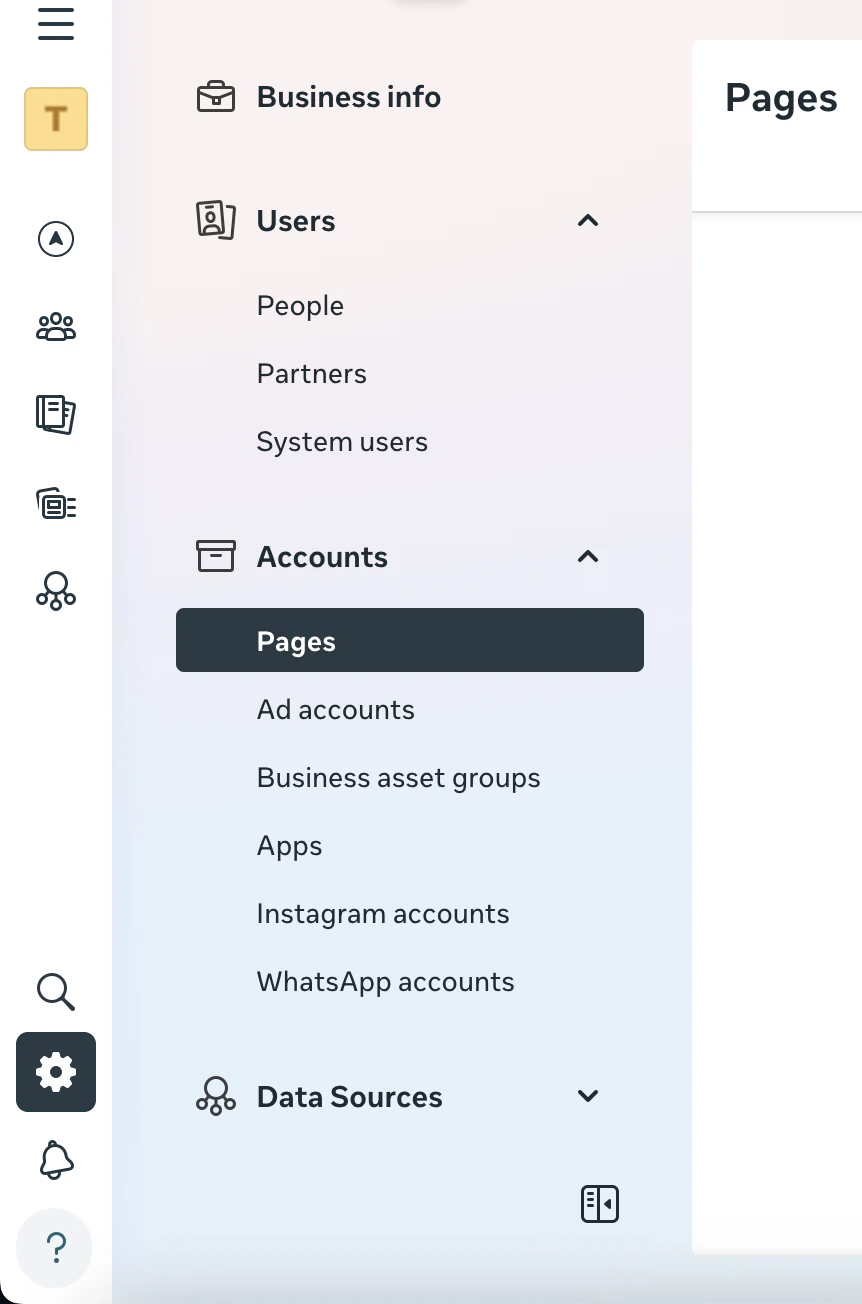
Navigate to Business Settings
Go to Business Settings in your Business Portfolio dashboard.
Access Pages Section
In the sidebar under Accounts , click Pages .
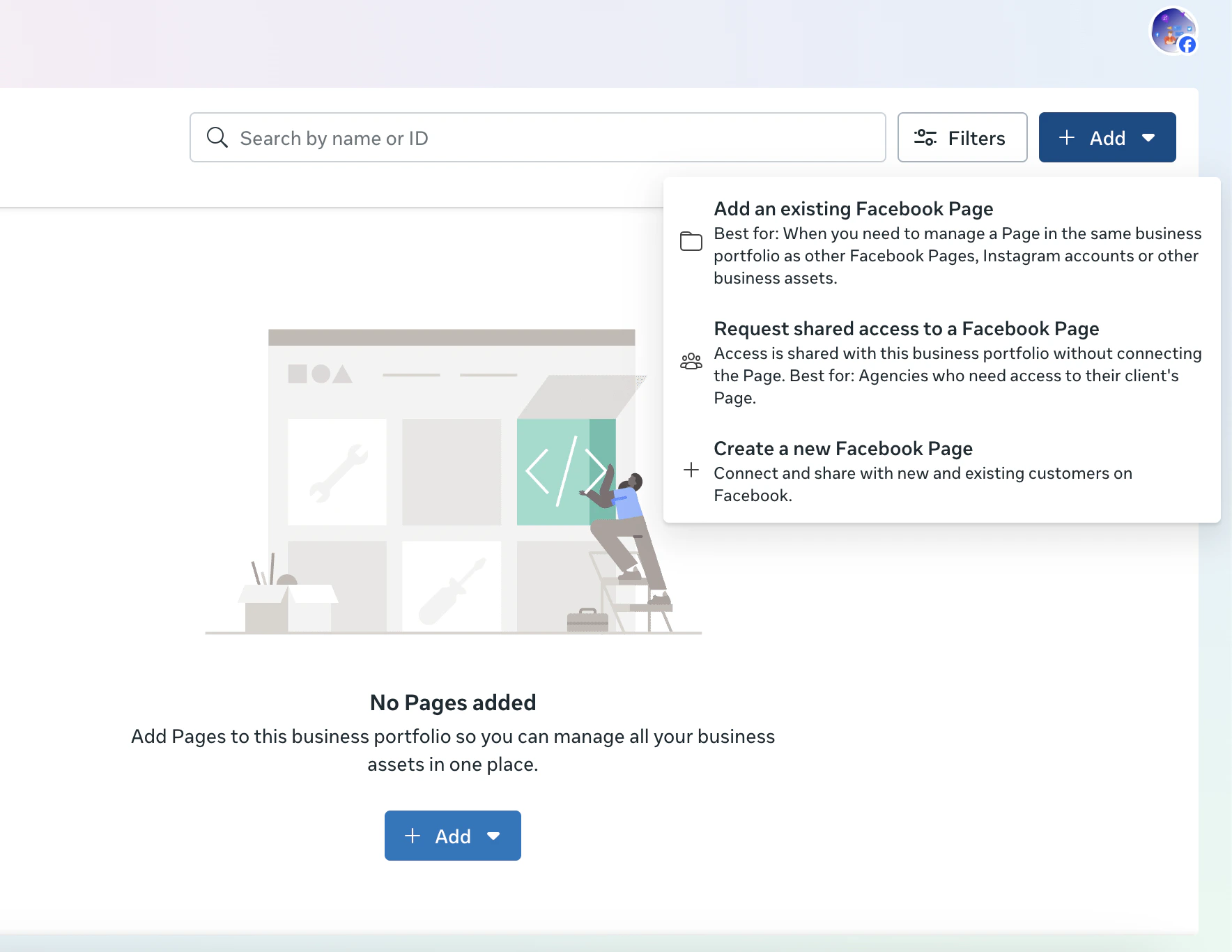
Add a Page
Click Add and choose to Create a new page or Use an existing one .
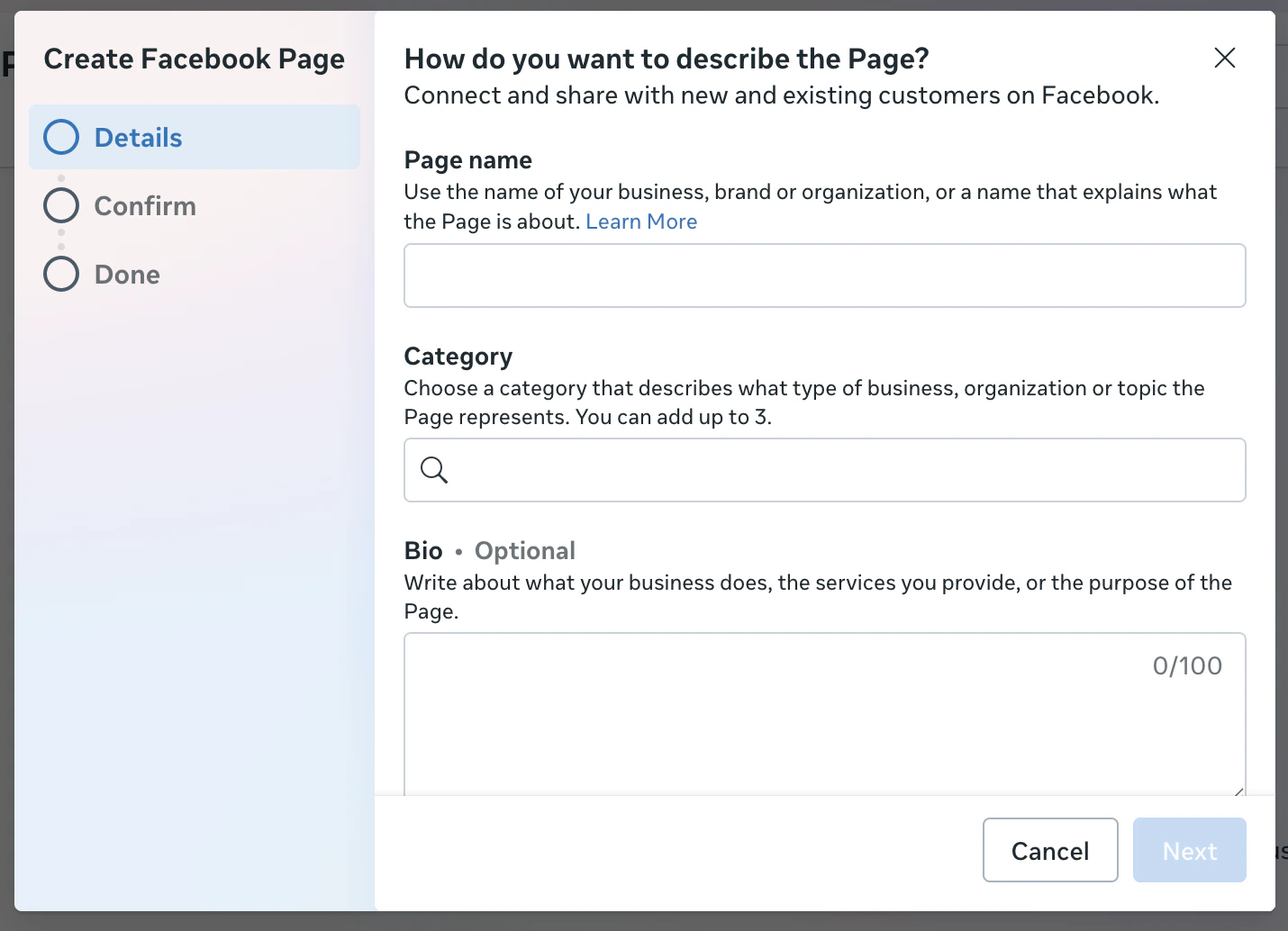
Complete Page Setup
Fill in the form with your page name, category, and other required details to complete page creation. Step 3: Add an Ad Account and Payment Method Set up your advertising account with a valid payment method to run campaigns.
Access Ad Accounts
In Business Settings , go to Ad Accounts from the sidebar.
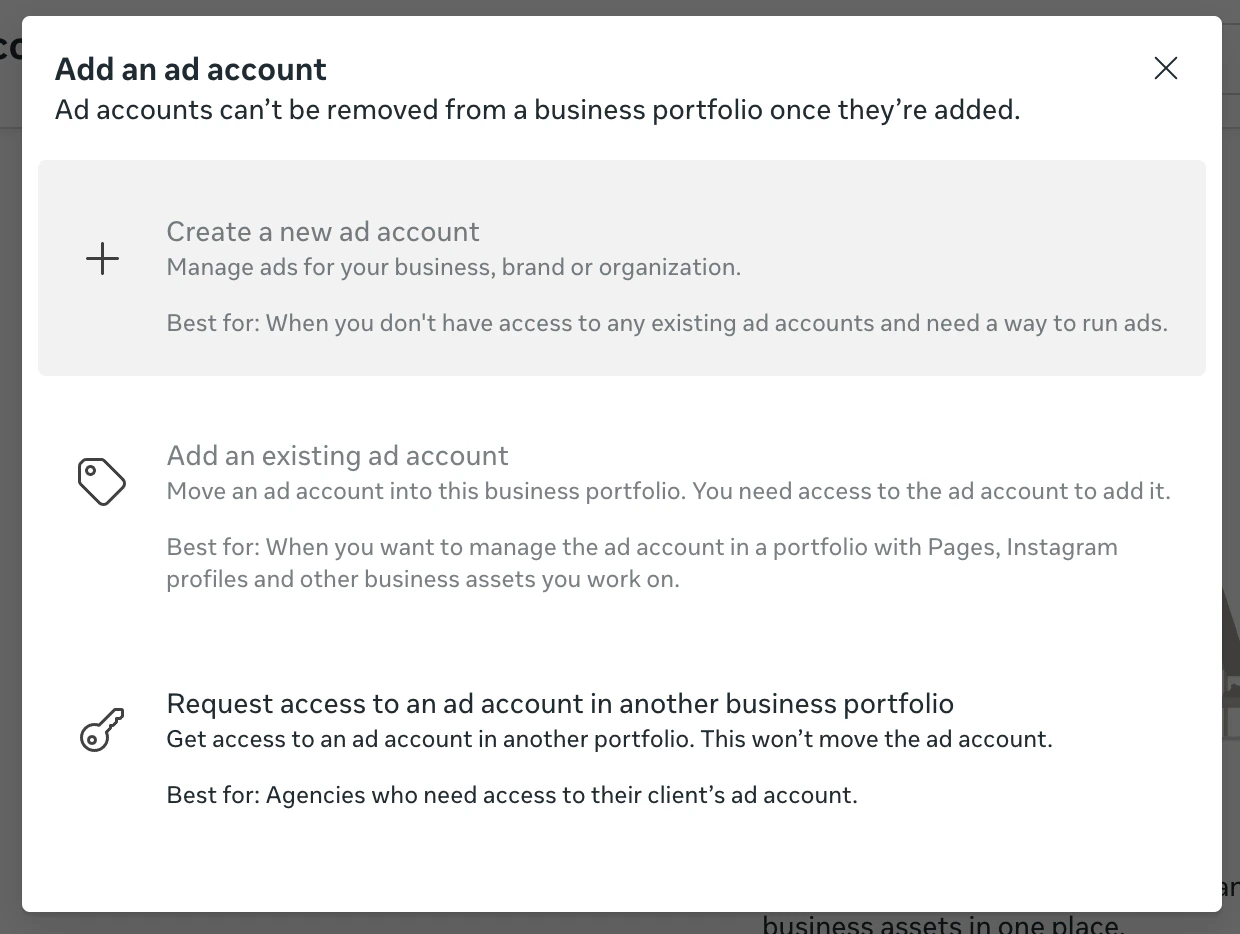
Add Ad Account
Click Add → Create a new ad account .
Configure Account Details
Fill in required details such as Time Zone and Country/Region , then click Create Ad Account .
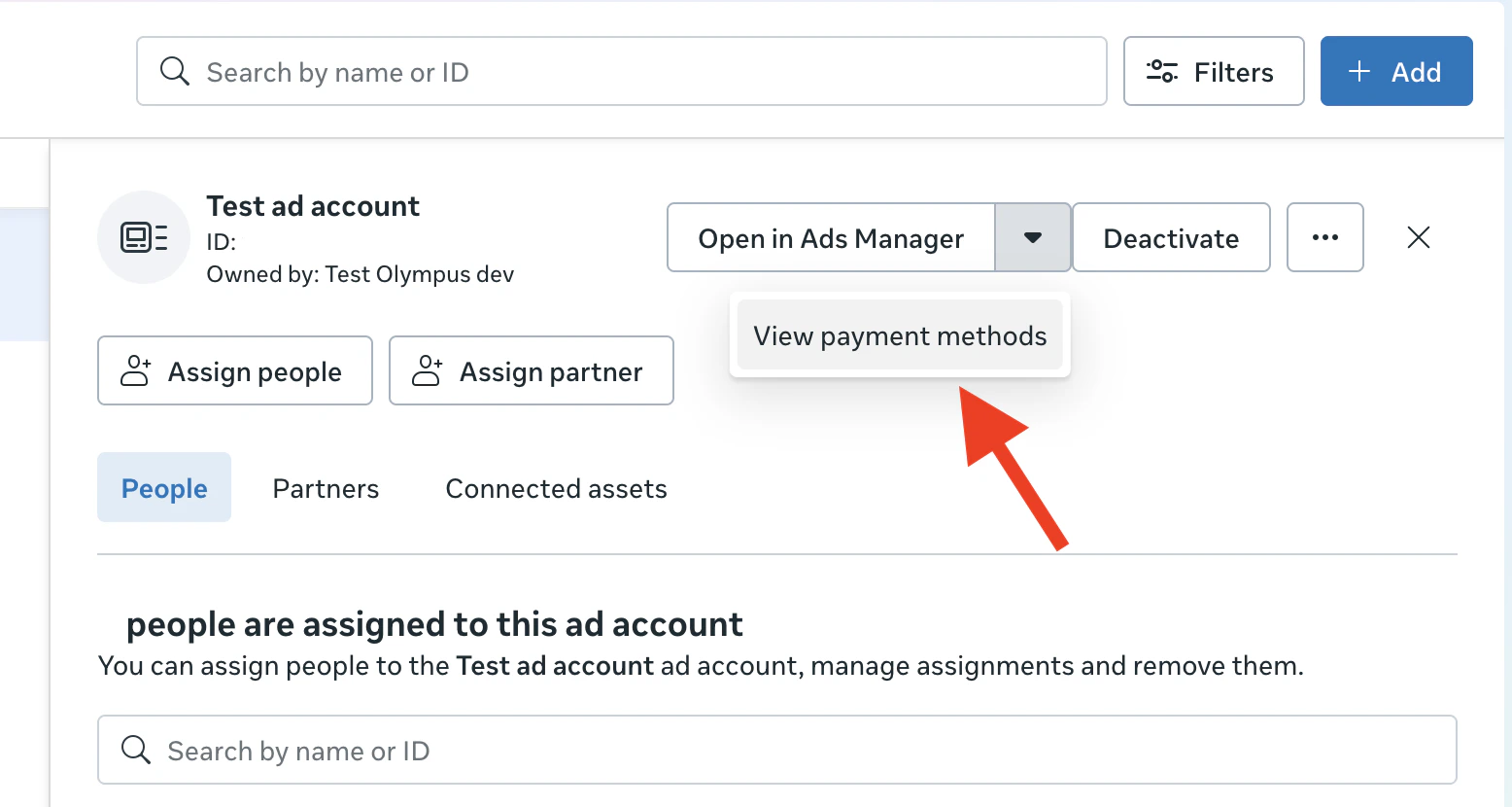
View Payment Methods
After creation, open the dropdown on your ad account and click View Payment Methods .
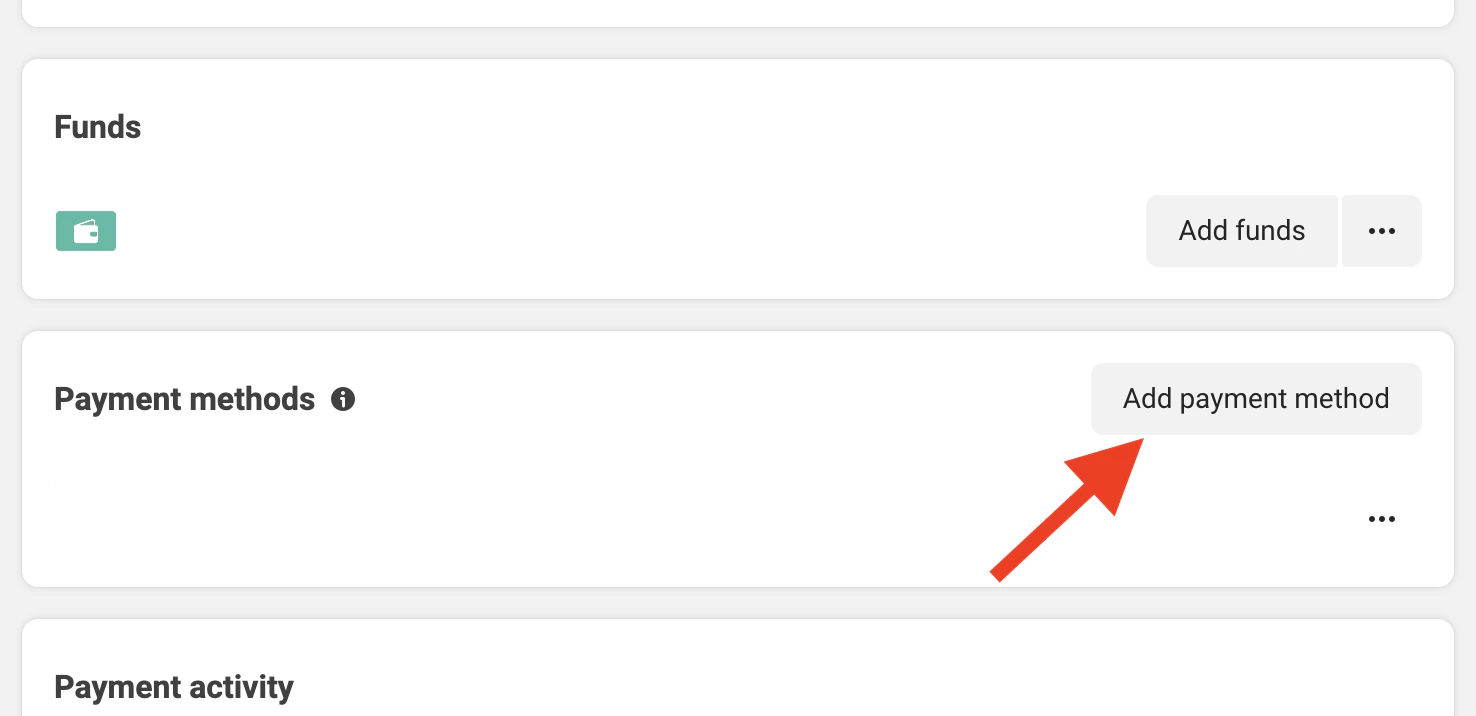
Add Payment Method
Click Add Payment Method and fill in your payment details to enable ad spending. Step 4: Create a Developer App Create a Meta Developer App to access the Marketing API.
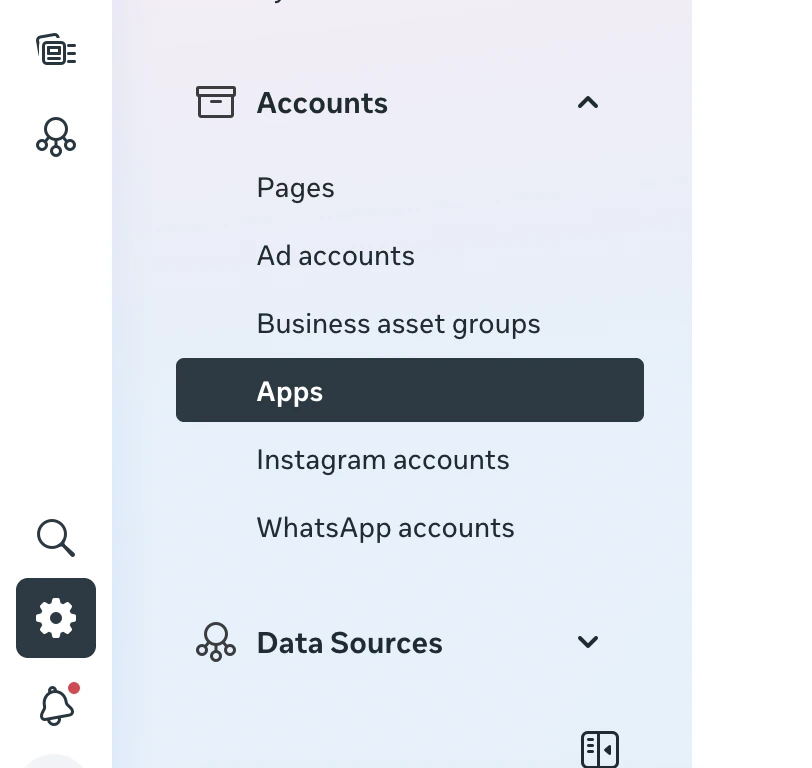
Navigate to Apps
In Business Settings , go to Apps .
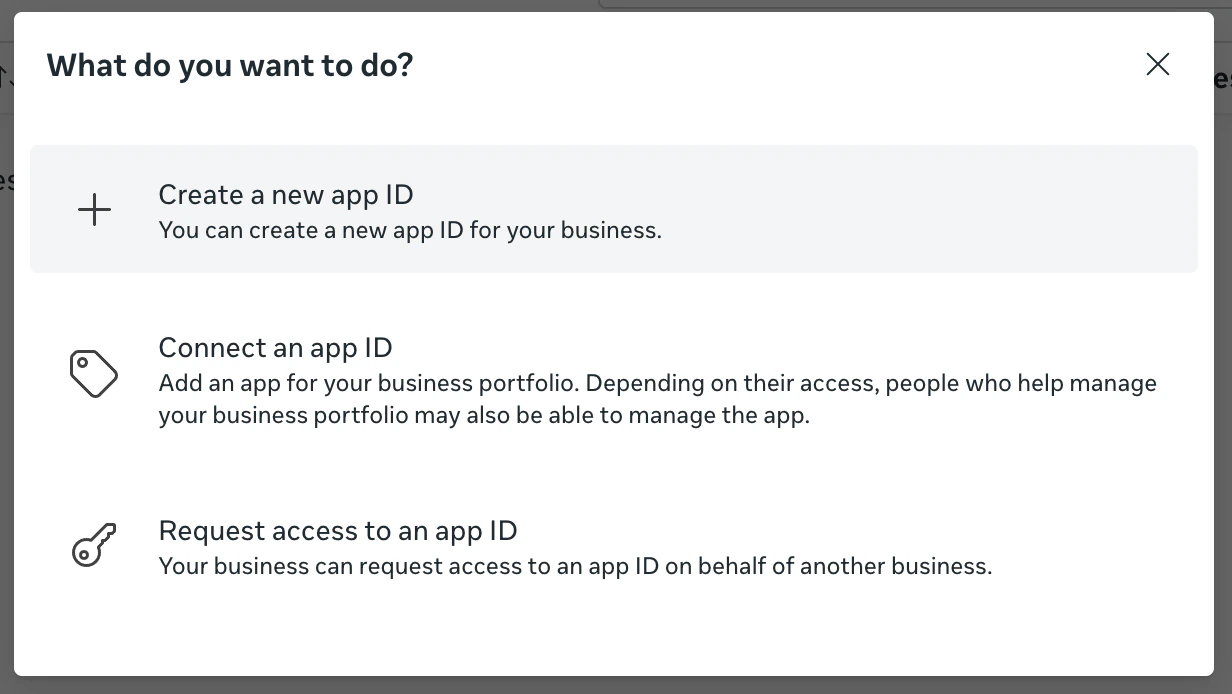
Create a new App ID
Click Add → Create a new App ID .
Access Facebook Developers
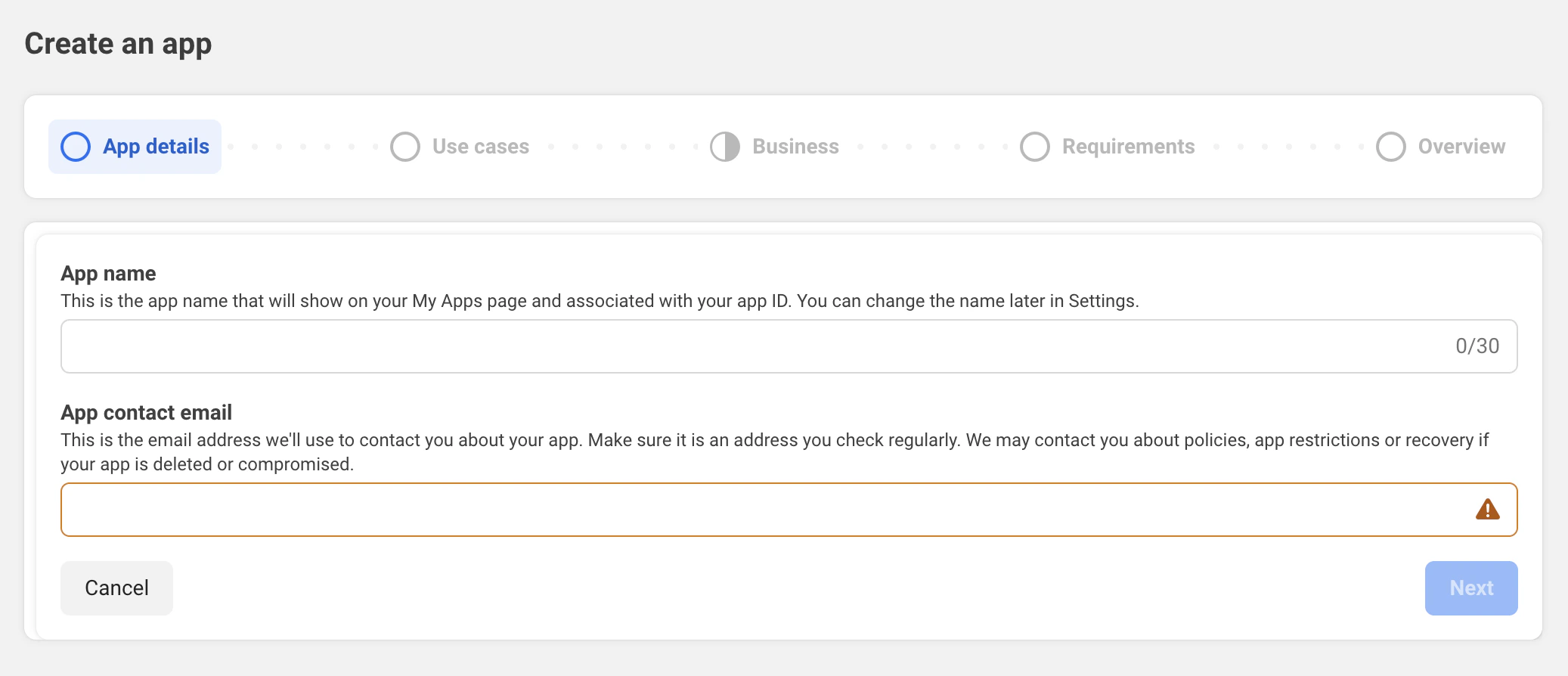
Fill in App Details
Enter your app name and contact email address.
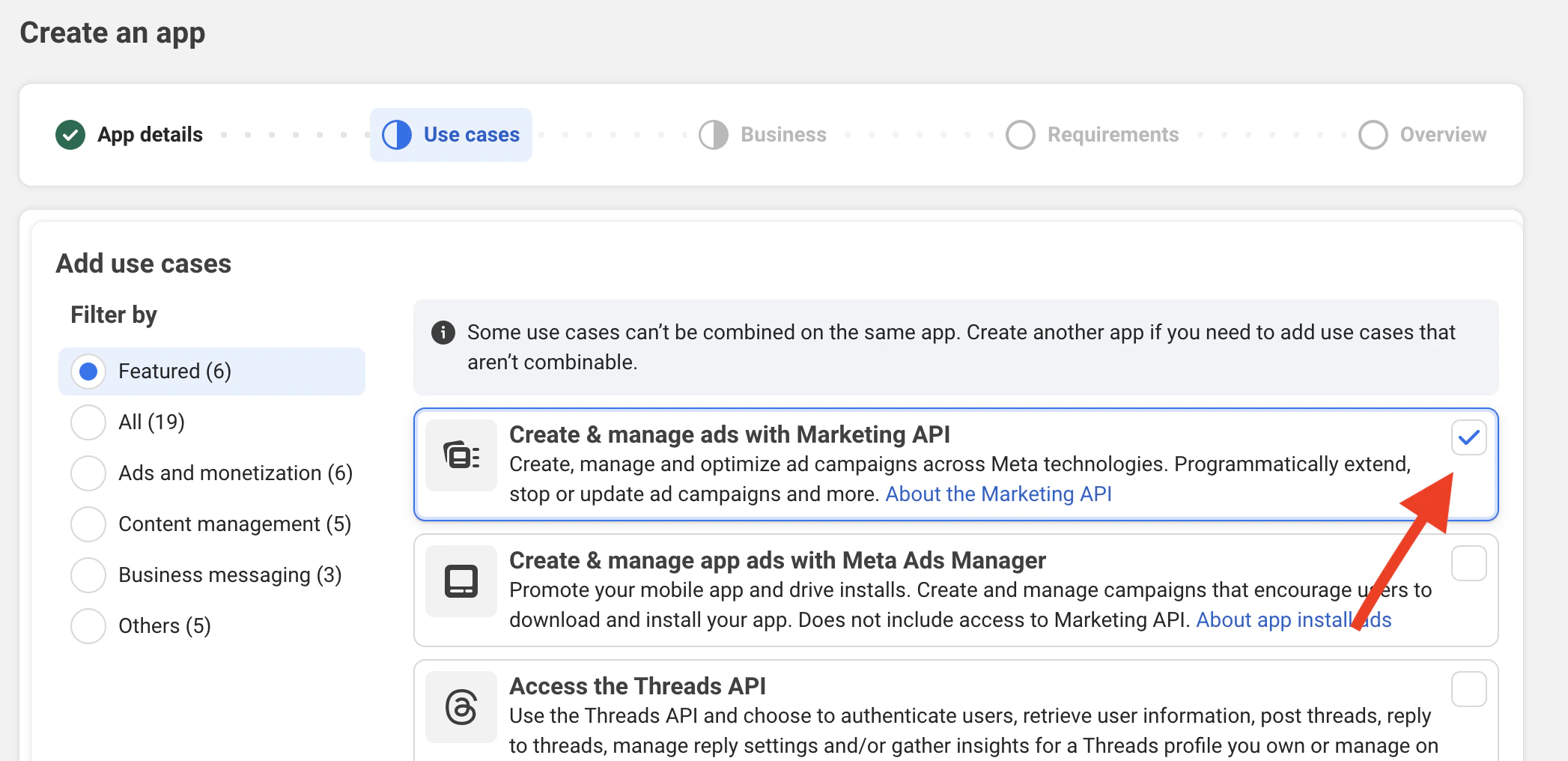
Select Use Case
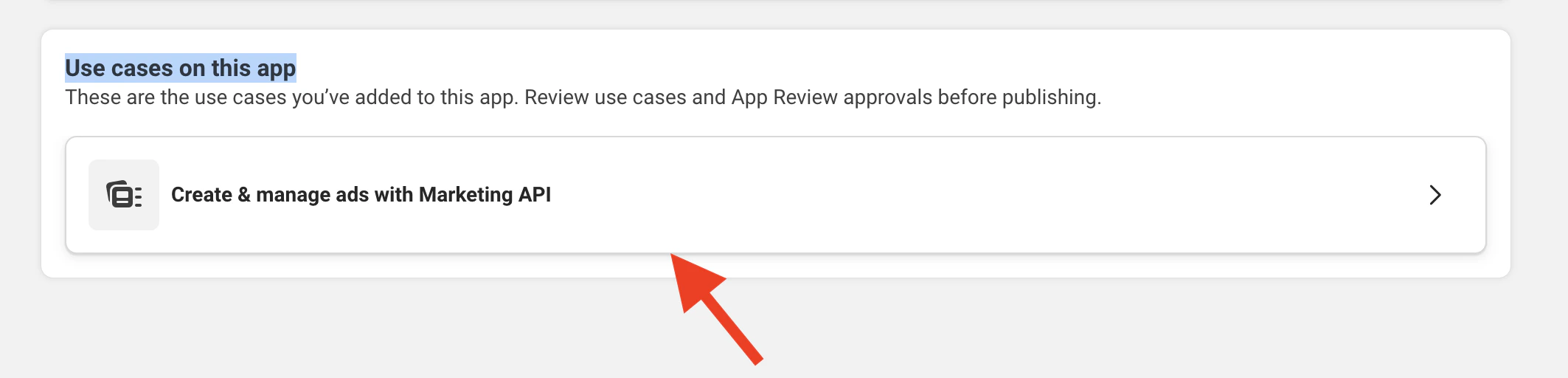
Choose Create & manage ads with Marketing API as the use case for your app.
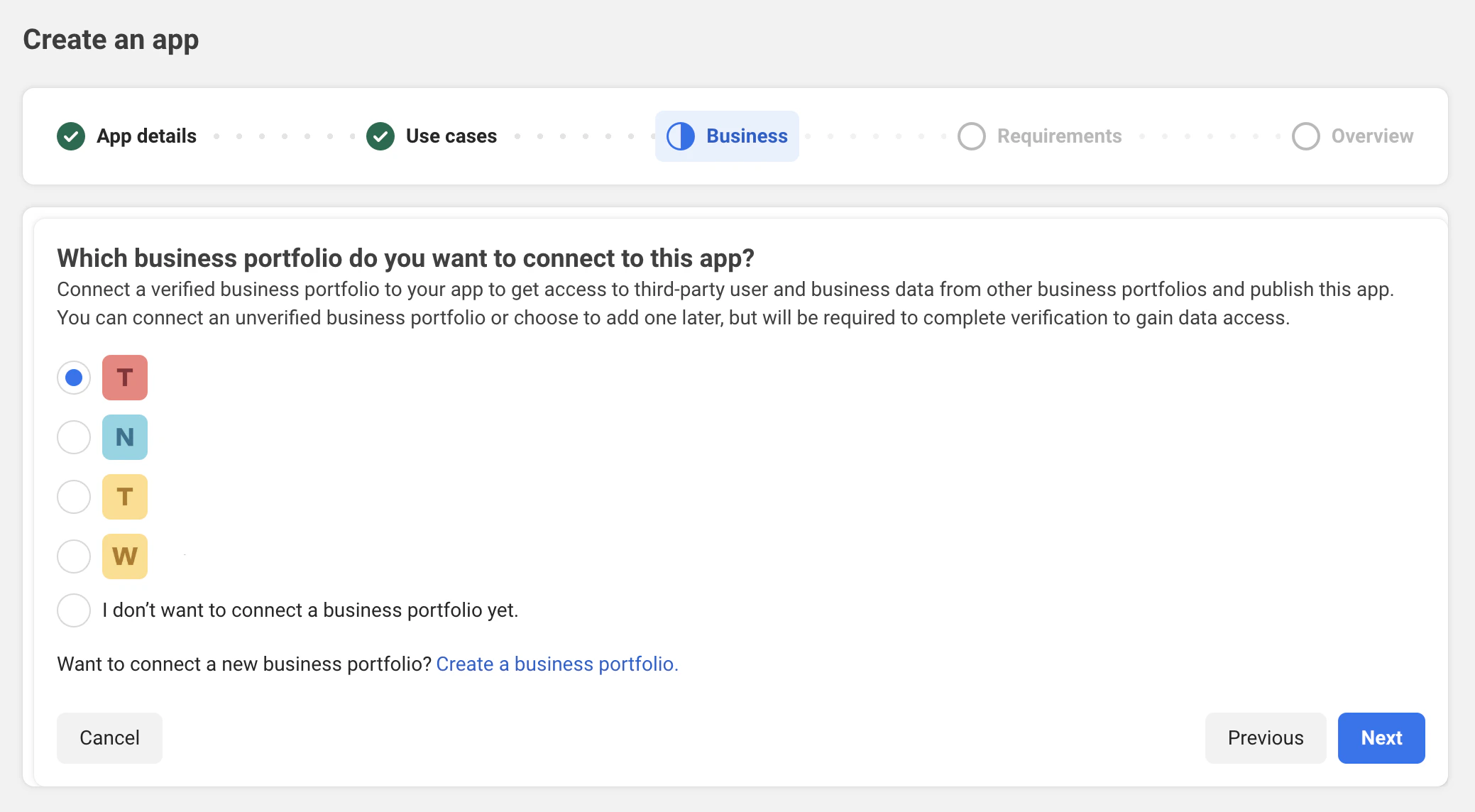
Choose Business Portfolio
Select the Business Portfolio you created earlier to associate with this app.
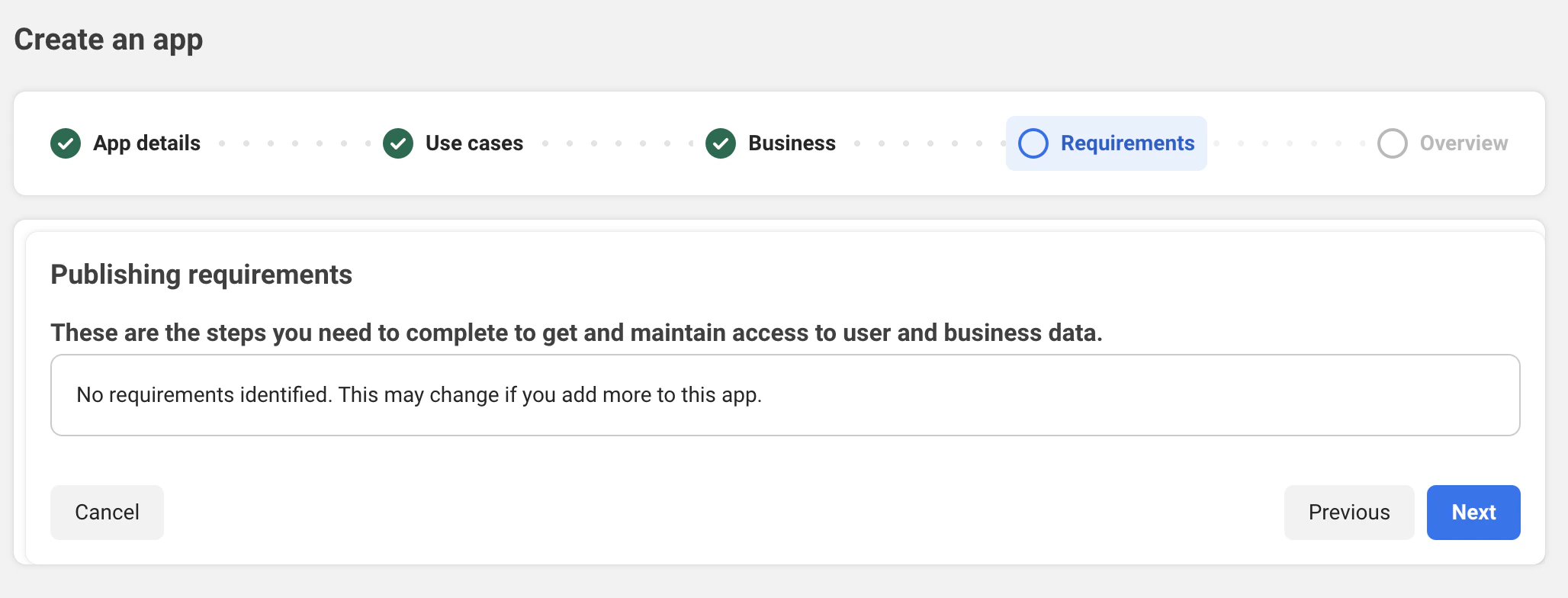
Continue Setup
Click Next to proceed with app creation.
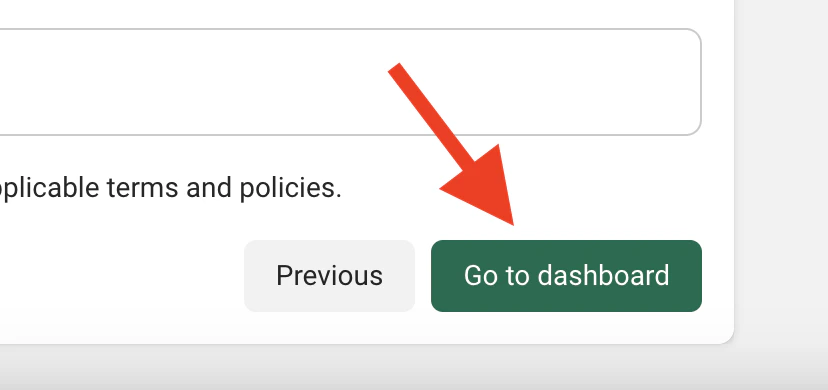
Go to Dashboard
On the Overview step, click Go To Dashboard . Enter your Facebook password when prompted. Configure your app’s privacy policy and publish it to enable full functionality.
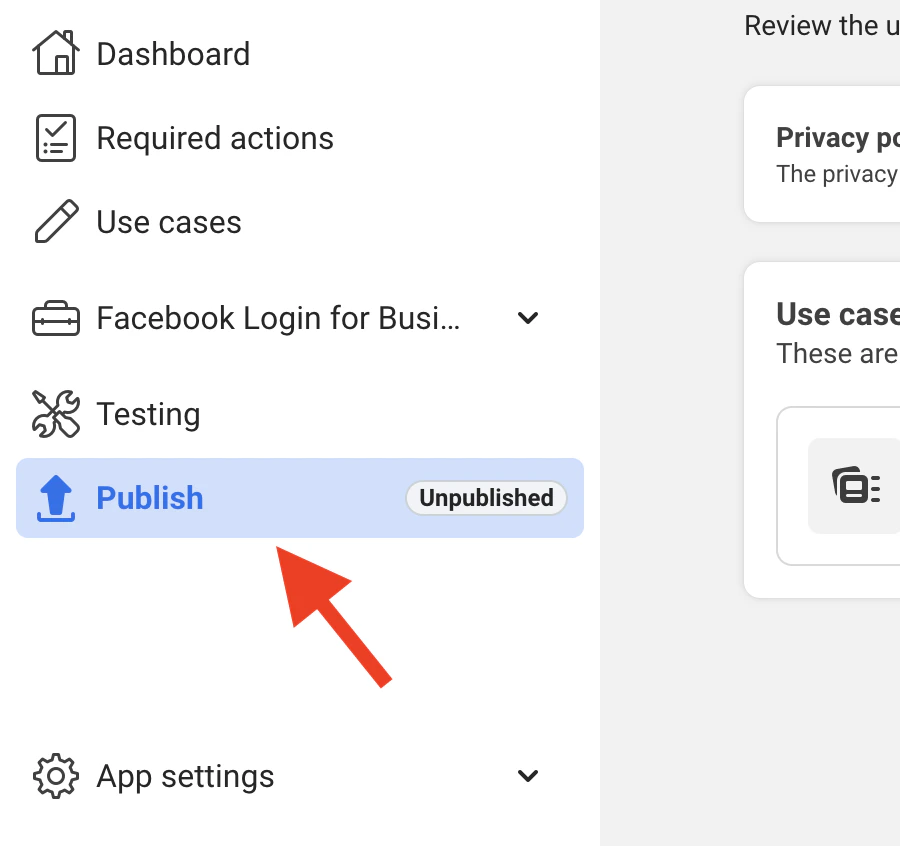
Navigate to Publish
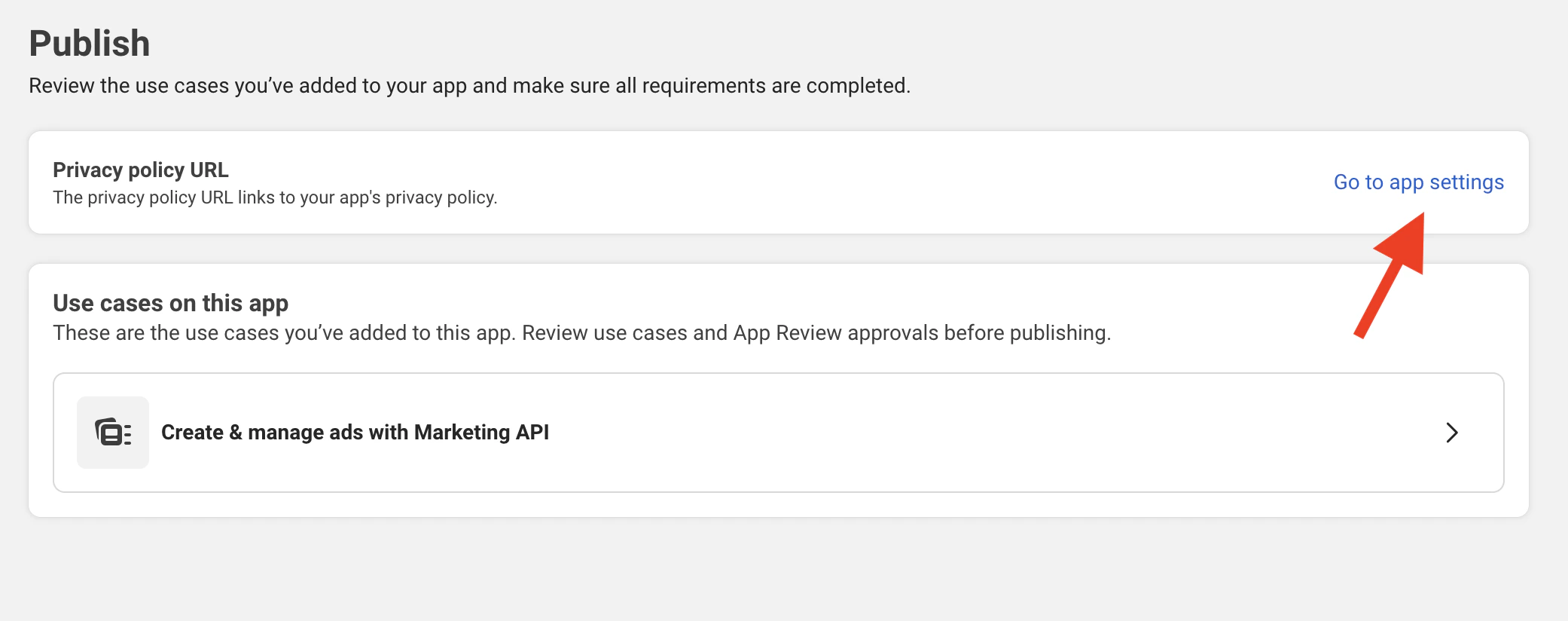
From the Dashboard sidebar, click Publish .
Configure Privacy Policy
Click Go to App Settings next to Privacy Policy URL.
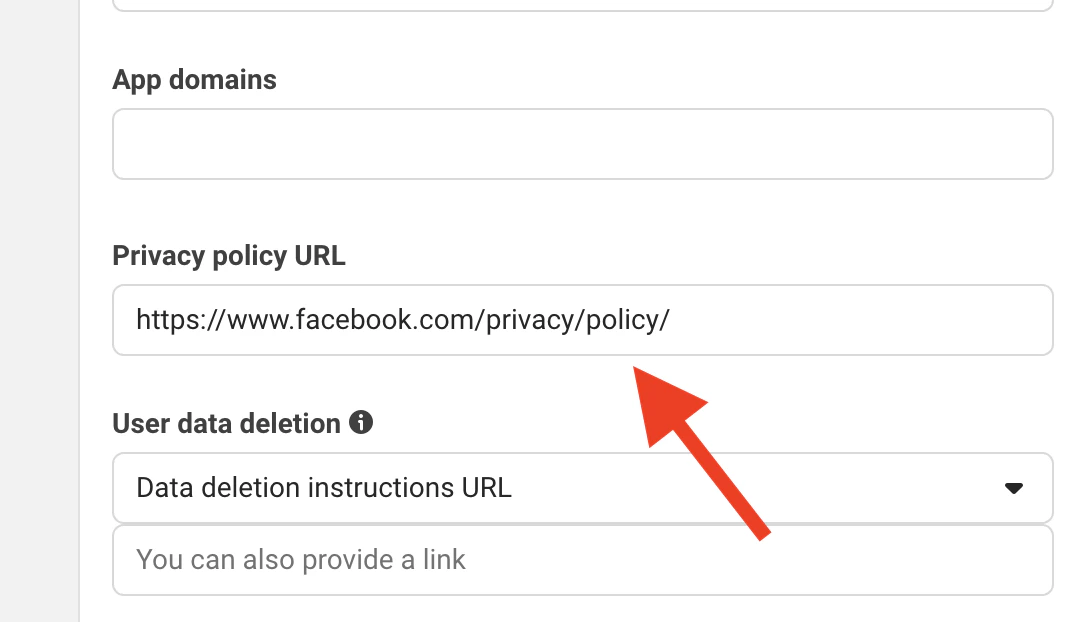
Add Privacy Policy URL
Enter a valid privacy policy page URL.
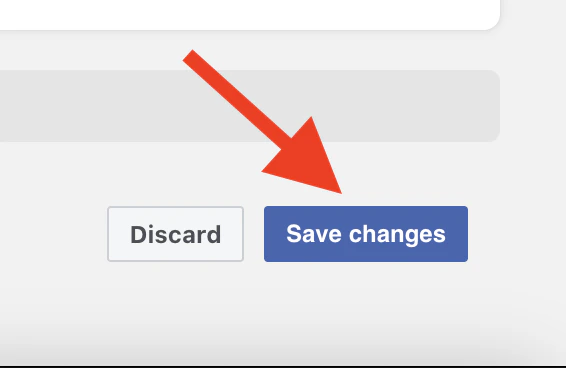
Save Changes
Click Save Changes .
Return to Publish
Go back to the Publish section in the sidebar.
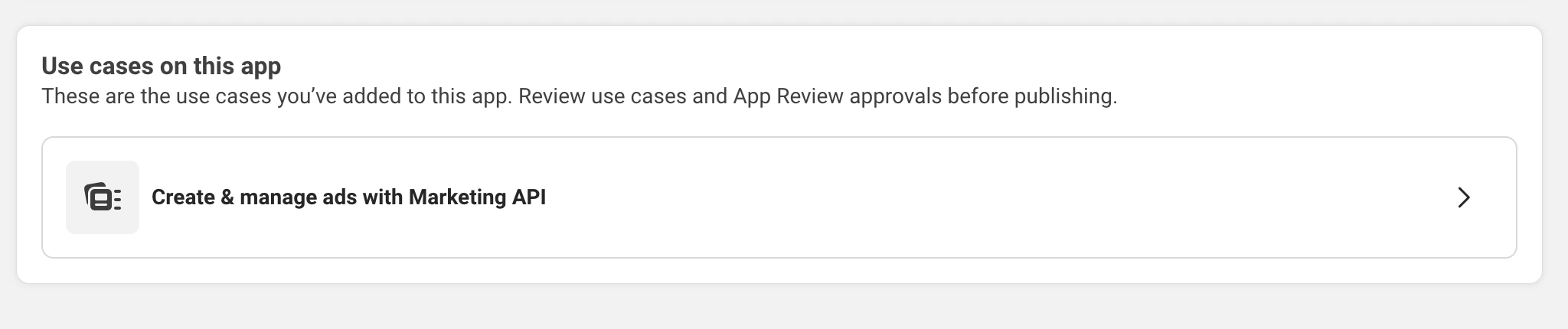
Select Use Case
In Use cases on this app , select Create & manage ads with Marketing API .
Publish Your App
After reviewing Use Case , go back & click Publish to make your app live. Step 6: Create a System User Create a System User for programmatic API access without personal account dependencies.
Access System Users
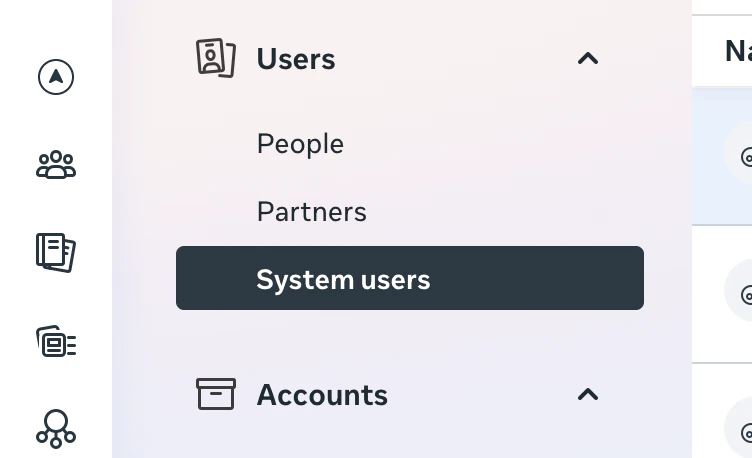
Go to Business Settings → System Users under the Users section.
Add System User
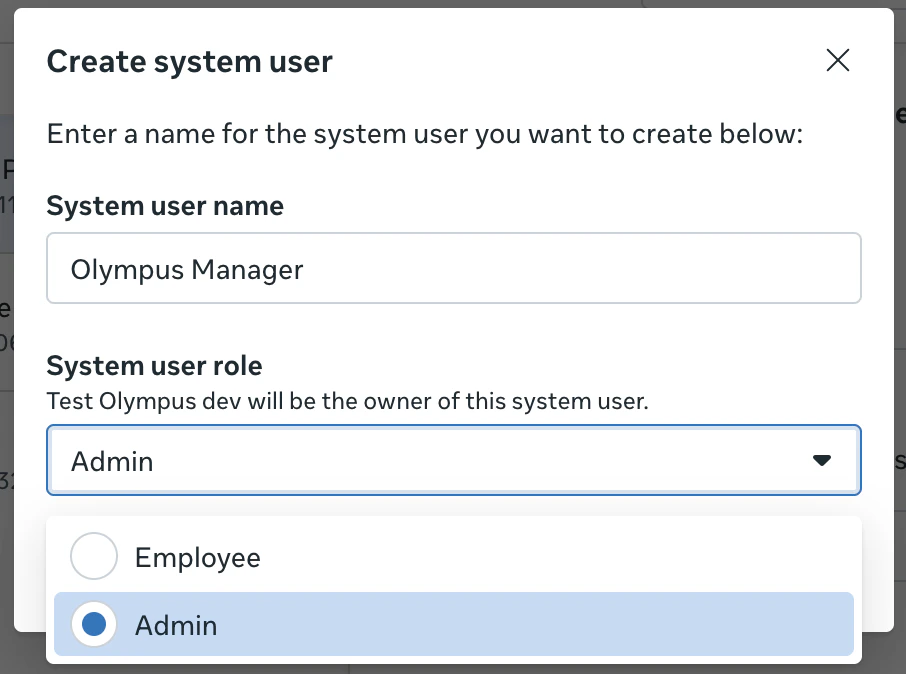
Click Add and enter a System User Name (e.g., “Olympus Integration”).
Set Admin Role
Set System User Role to Admin and click Create System User .
Step 7: Assign Assets to System User Grant your System User access to the necessary business assets.
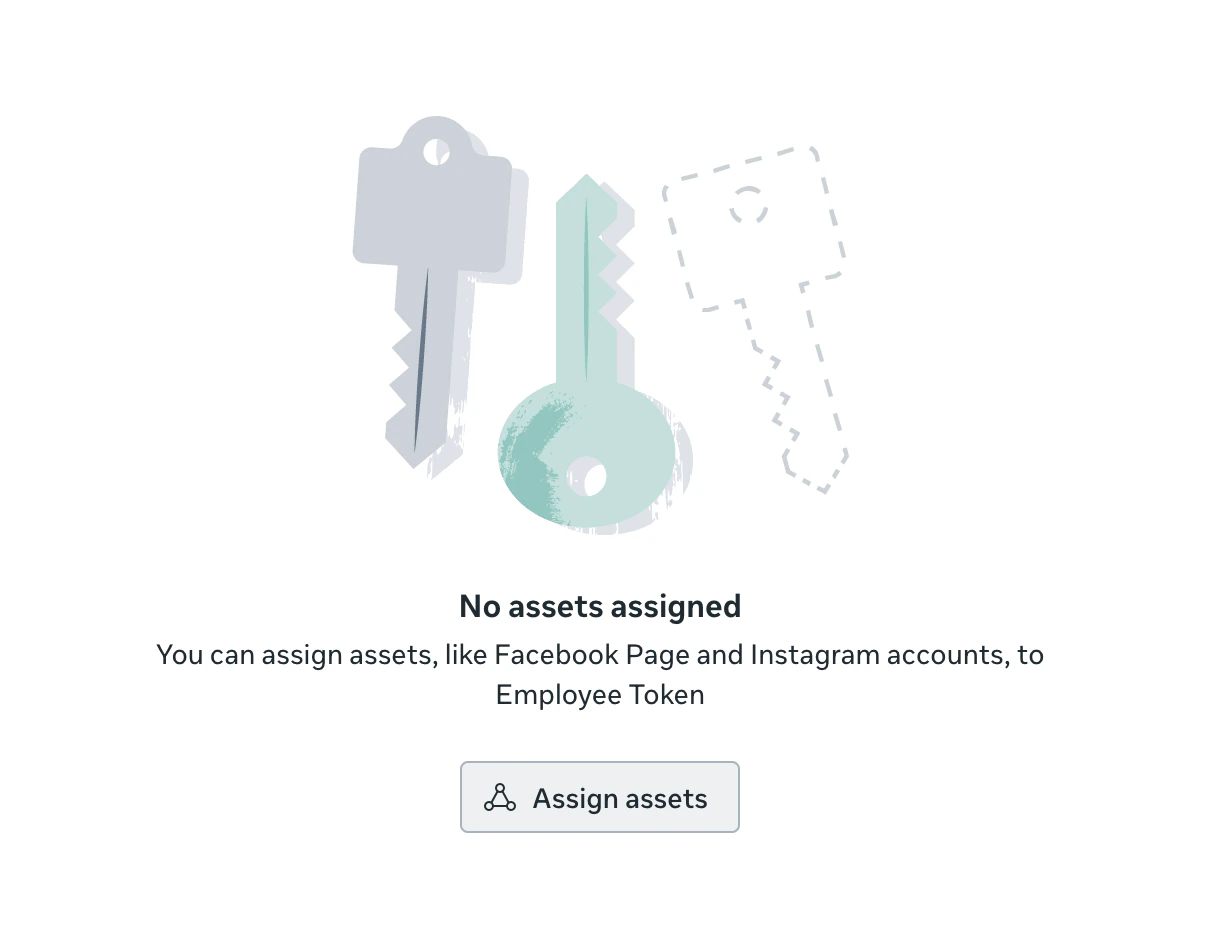
Click Assign Assets
Select your system user and click Assign Assets .
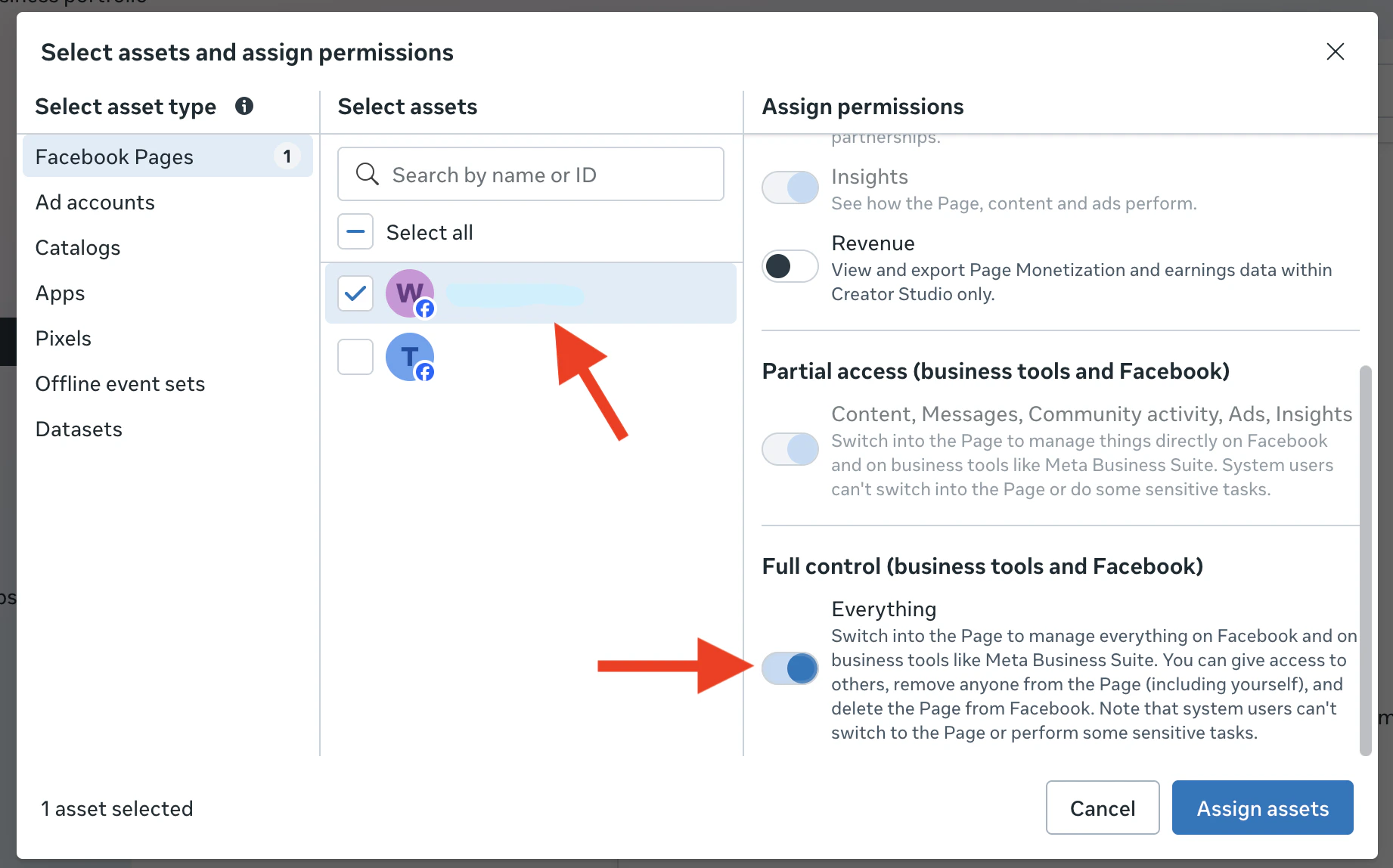
Assign Pages
Select Pages → choose your page → turn on Full Access .
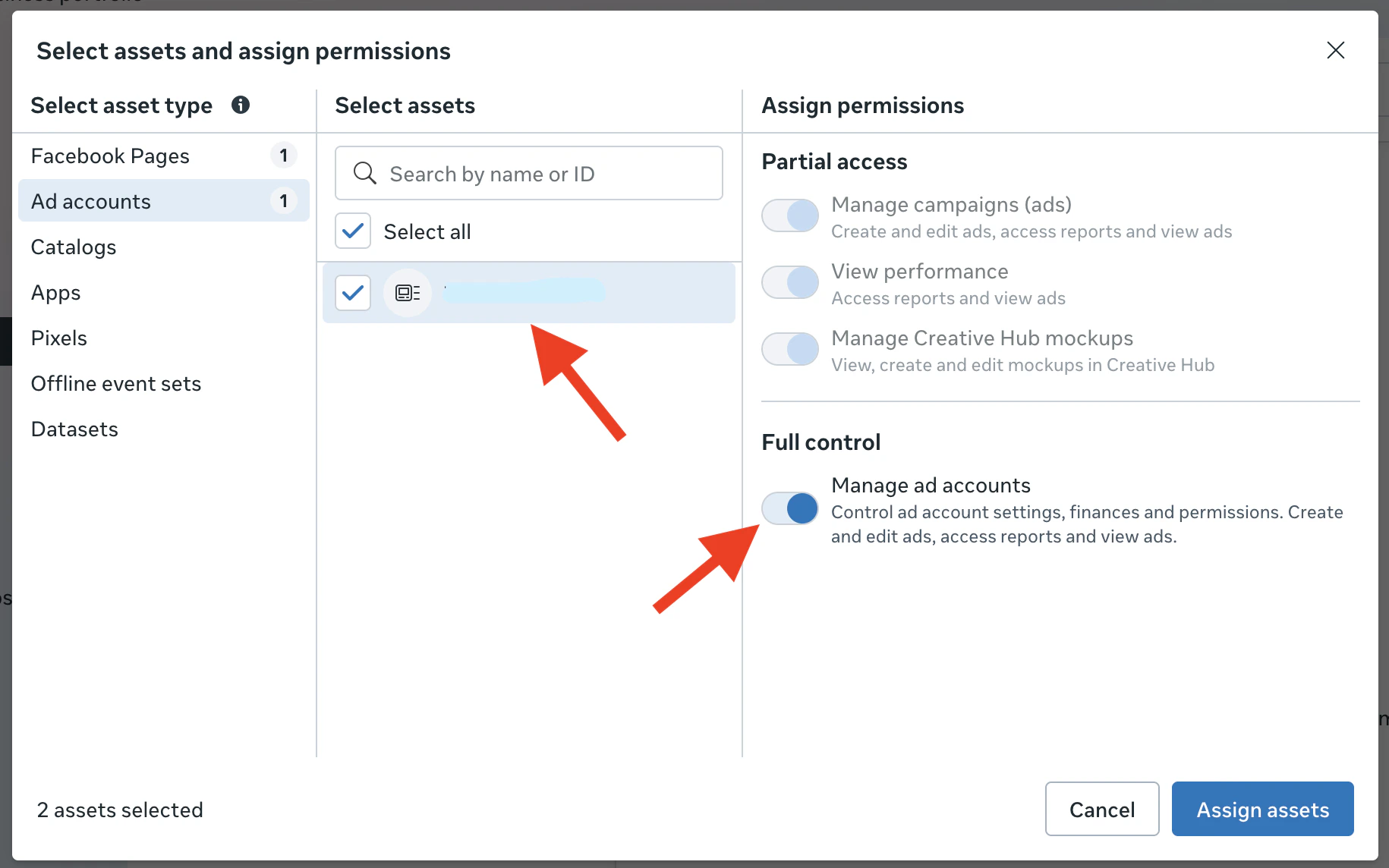
Assign Ad Accounts
Select Ad Accounts → choose your ad account → turn on Manage Ad Accounts .
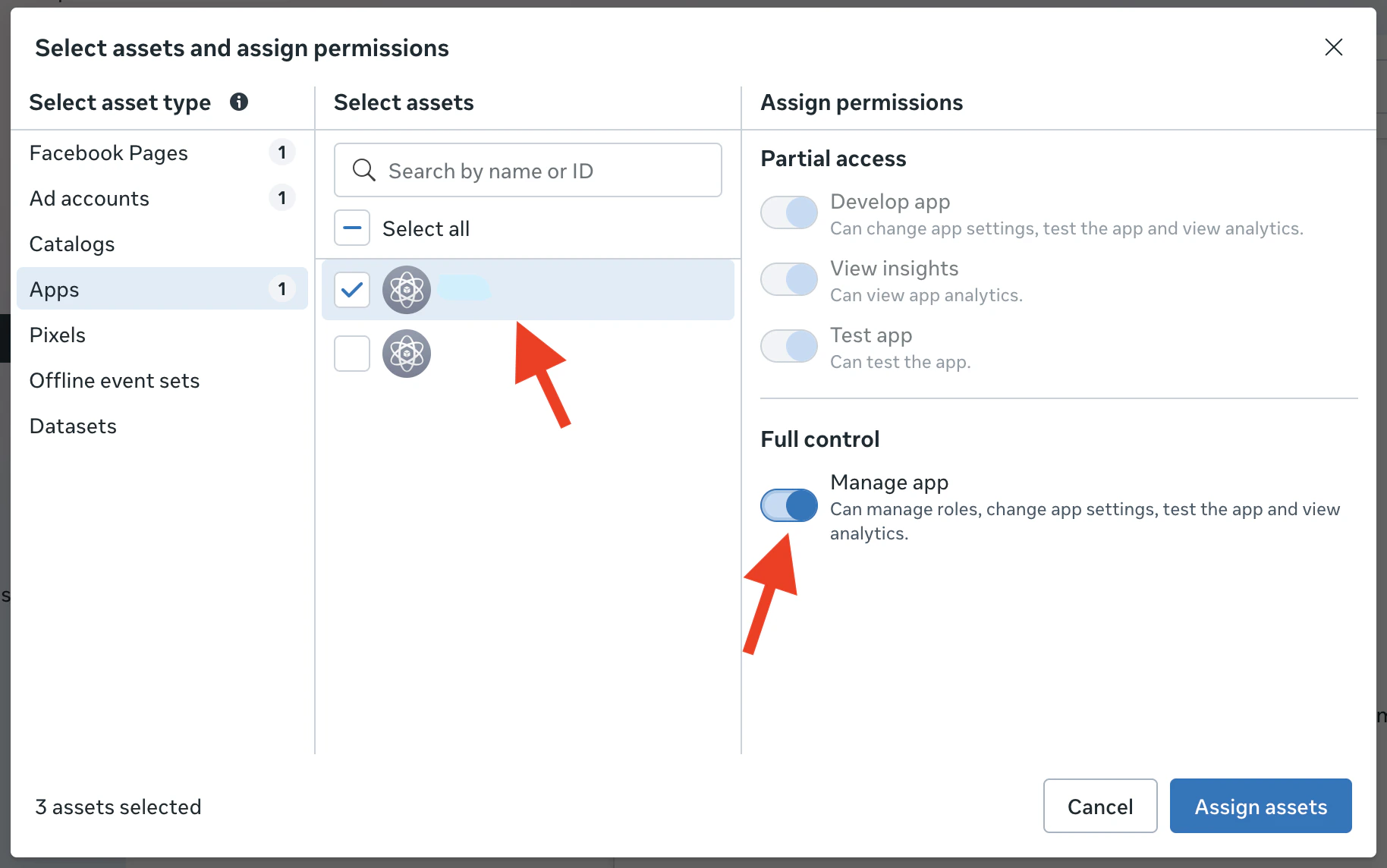
Assign Apps
Select Apps → choose your app → turn on Manage App → click Assign Assets . Step 8: Assign System User to App Add your System User directly to the app with full control permissions.
Navigate to Apps
Go to Apps from the Business Settings sidebar.
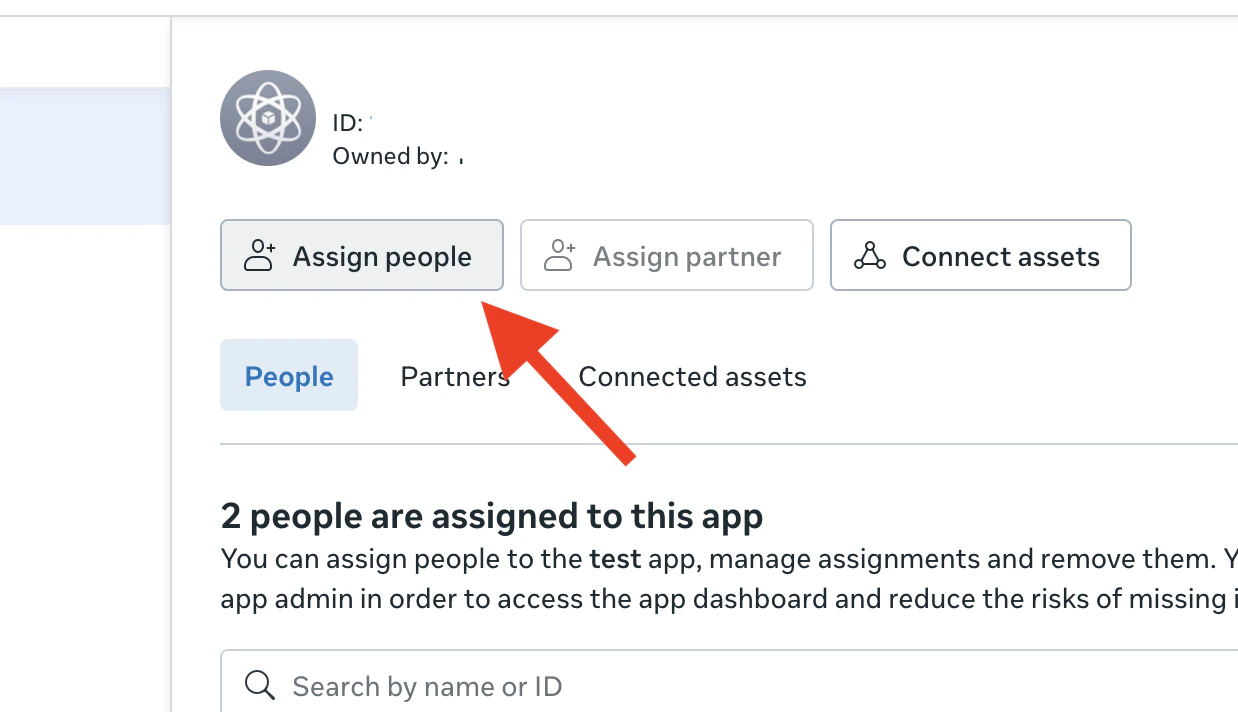
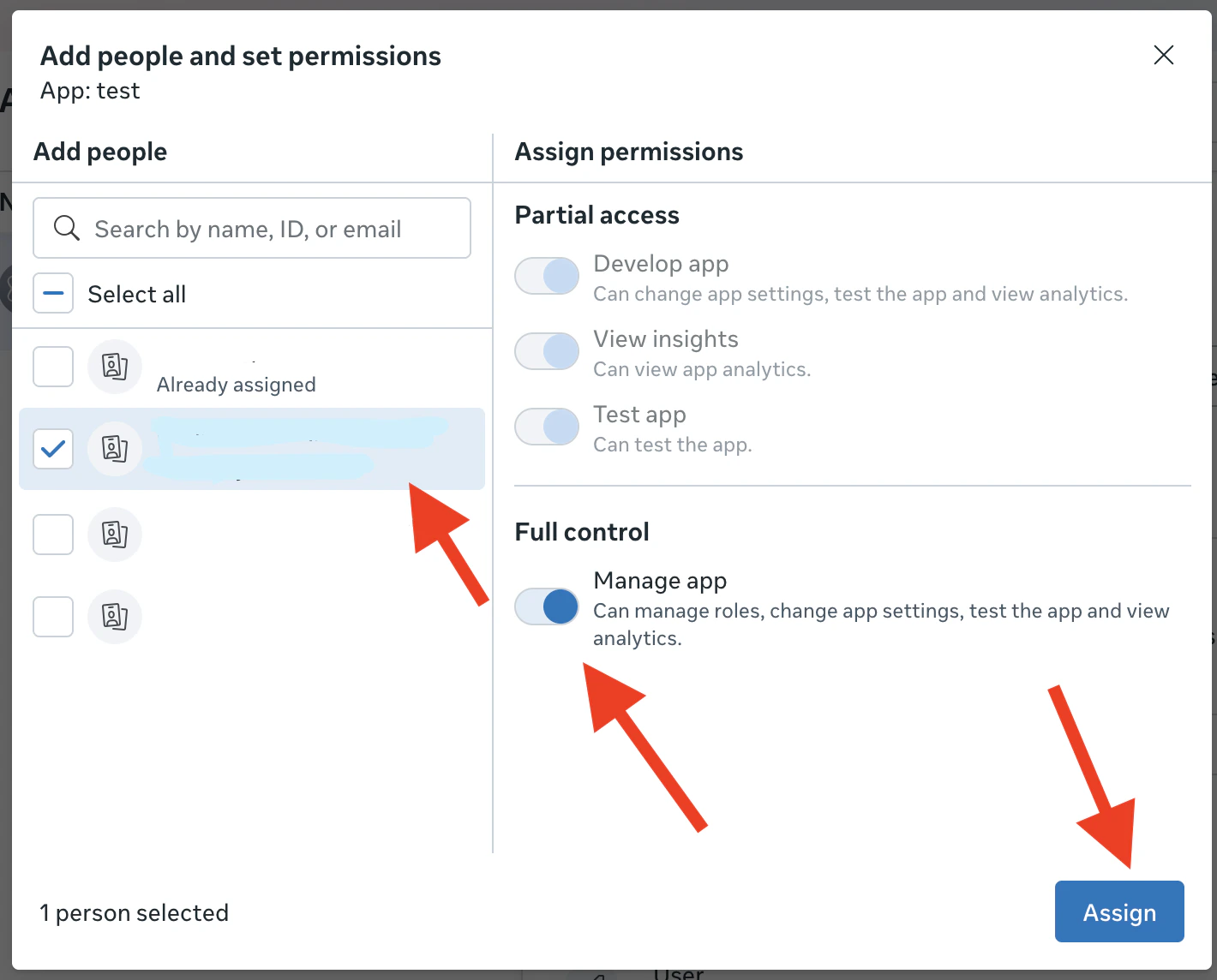
Assign People
Select your app and click Assign People .
Add System User
Select the created System User → turn on Manage App (Full Control) → click Assign . Step 9: Generate System User Access Token Generate a permanent access token for your System User.
Return to System Users
Go back to System Users and select your system user.
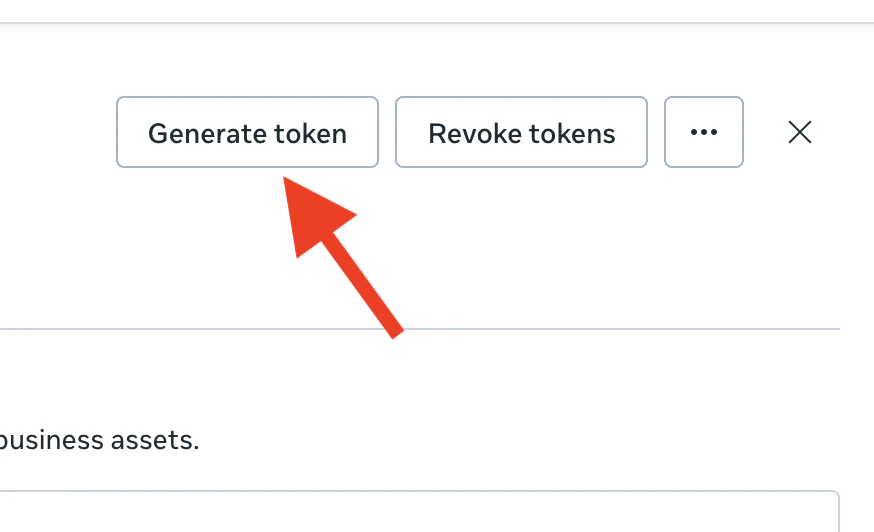
Generate Token
Click Generate Token .
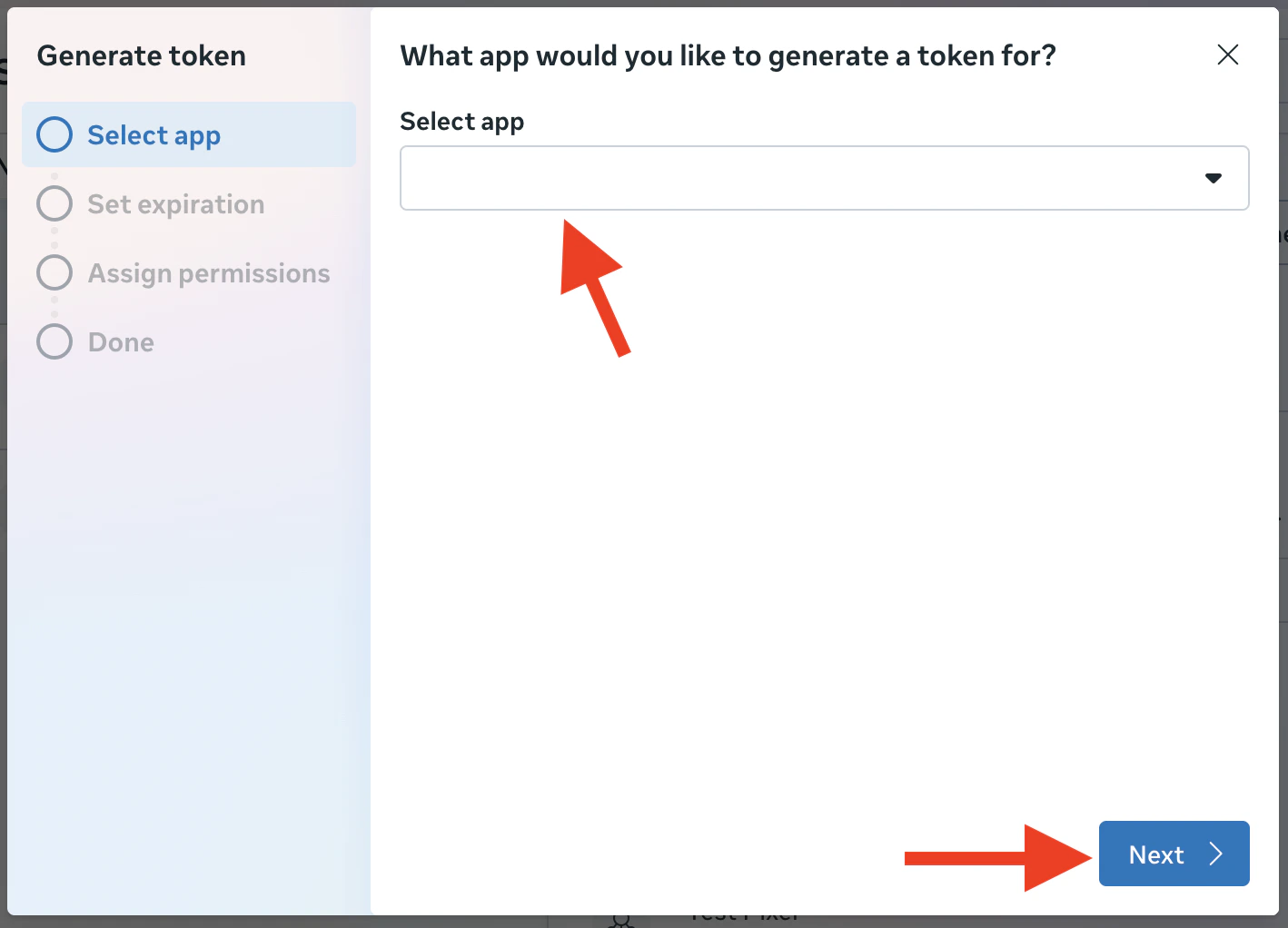
Select App
Select your app from the dropdown and click Next .
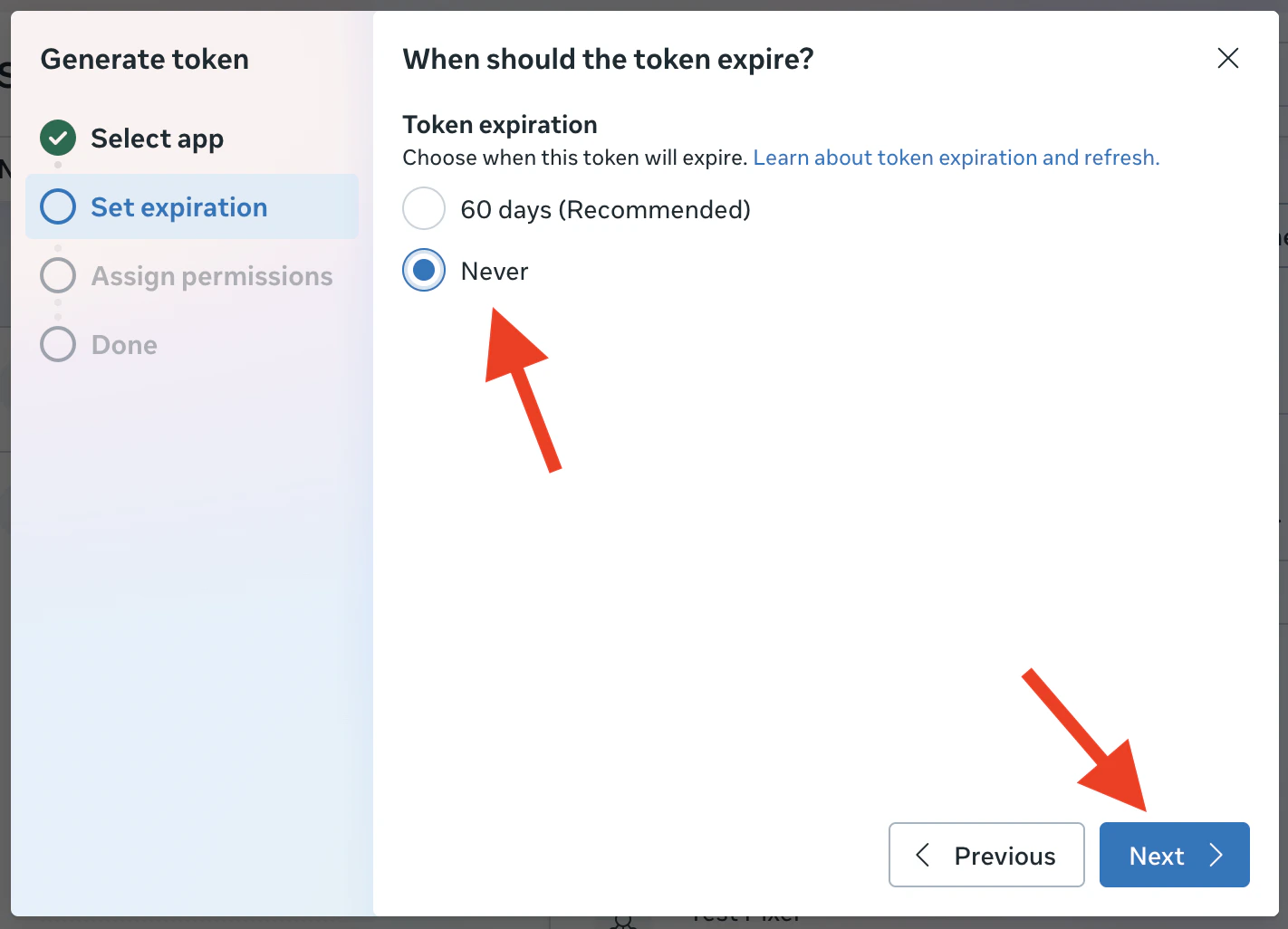
Set Token Expiration
Set Expiration to Never and click Next .
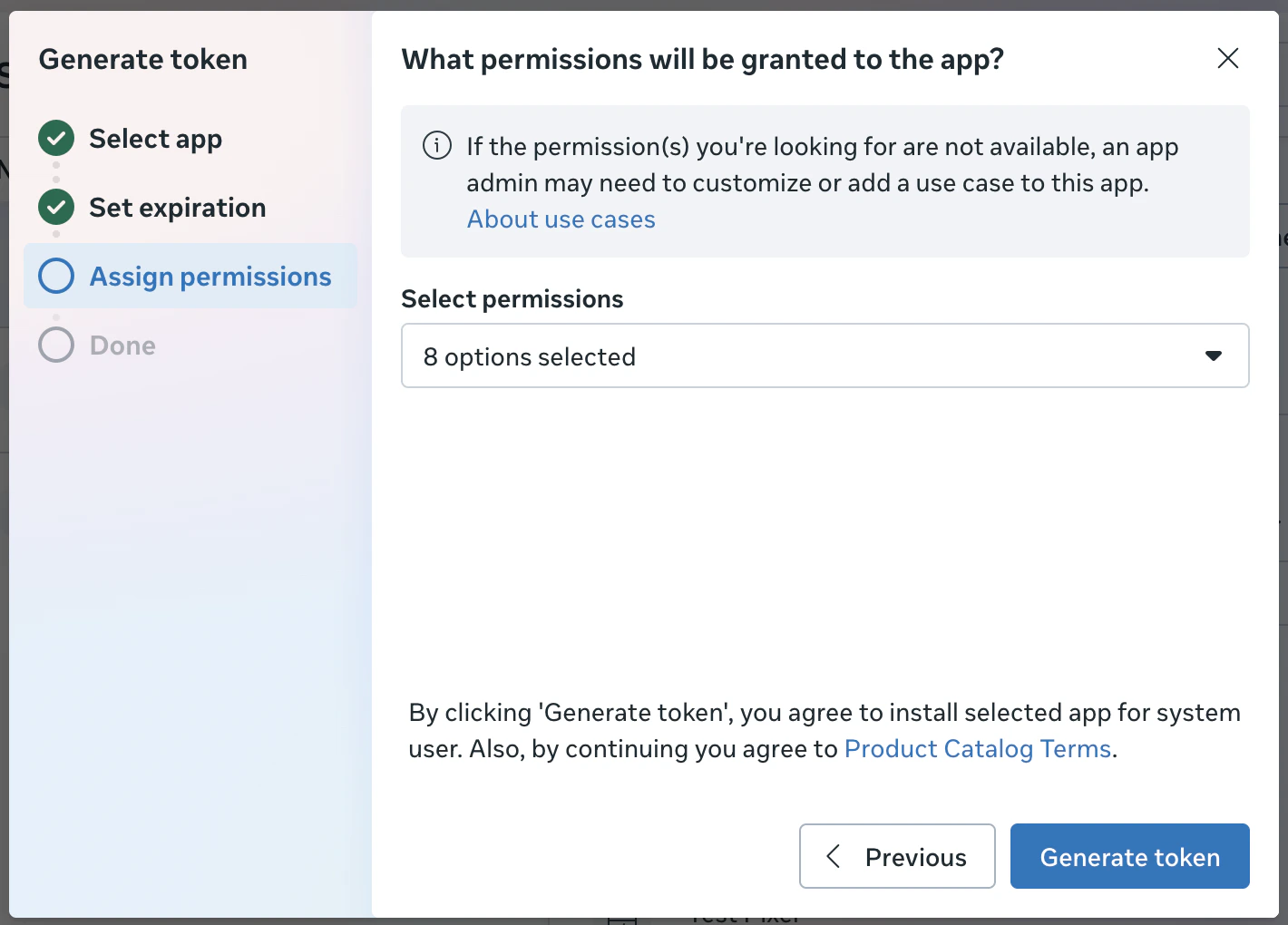
Select Required Permissions
Select the following permissions required for Olympus integration:
ads_management - Create and manage adsads_read - Read ad account data and insightsbusiness_management - Manage business assets and settingspages_show_list - List and access Facebook pagespages_read_engagement - Read page engagement metrics Click Generate Token after selecting all permissions.
Copy Token
Copy the generated token and store it securely. You will need this for the Olympus connection.
Important : Store your access token securely. This token provides full access to your Meta Business assets and should never be shared publicly.
Complete the integration by connecting your token to Olympus.
Navigate to Integrations
Go to Olympus → Integrations from the main navigation.
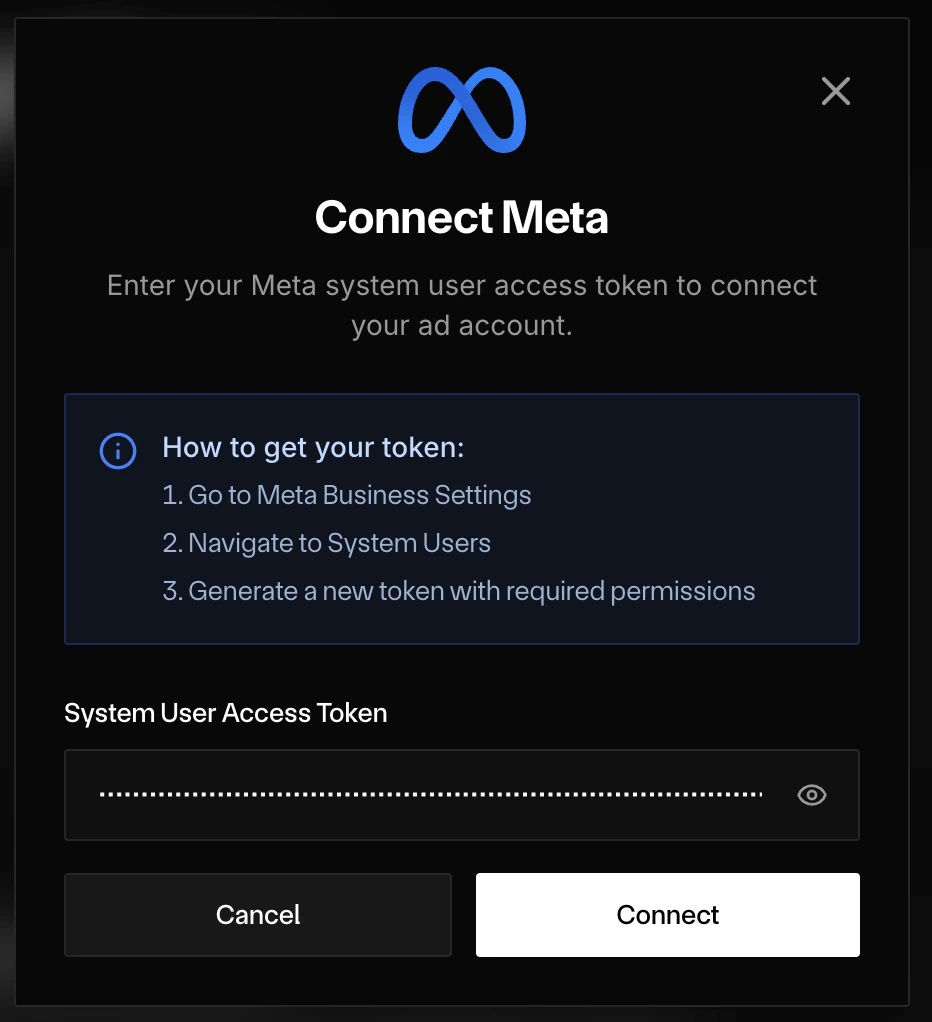
Connect Meta
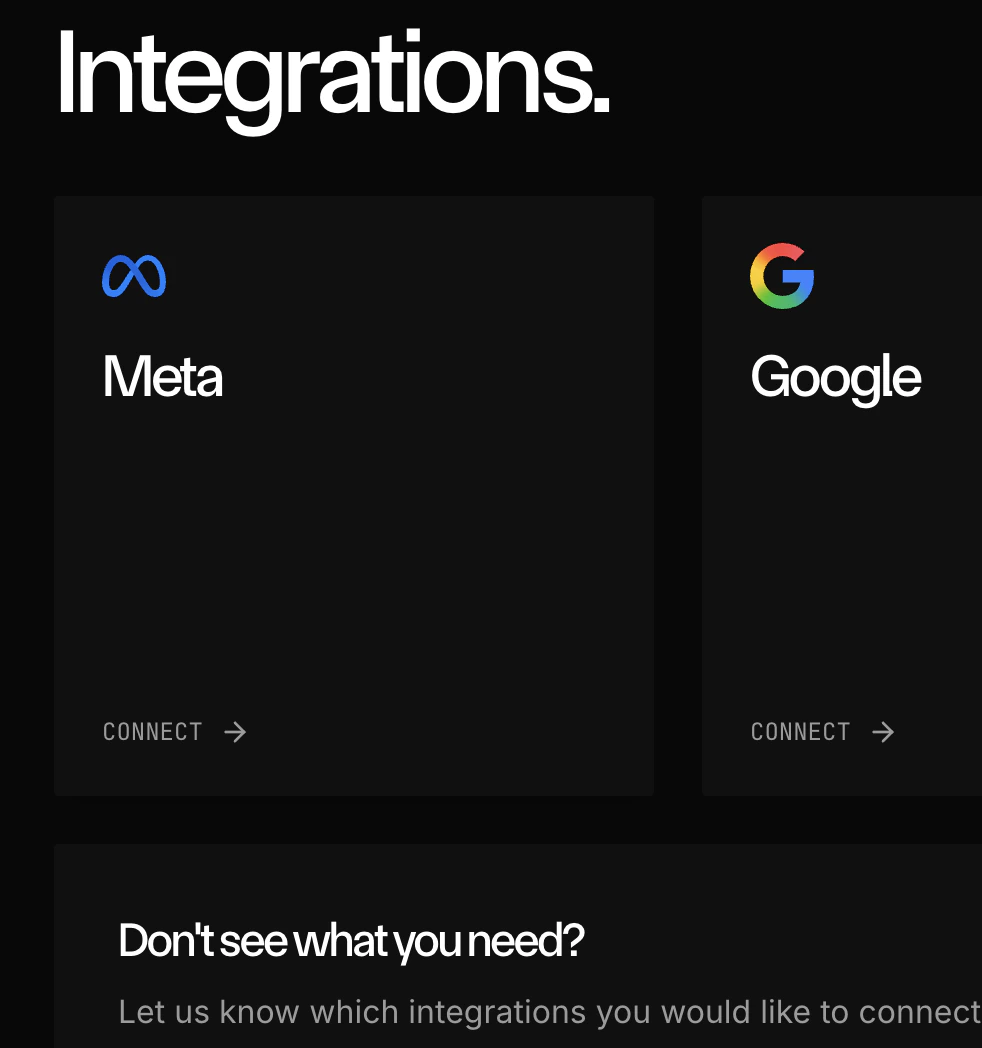
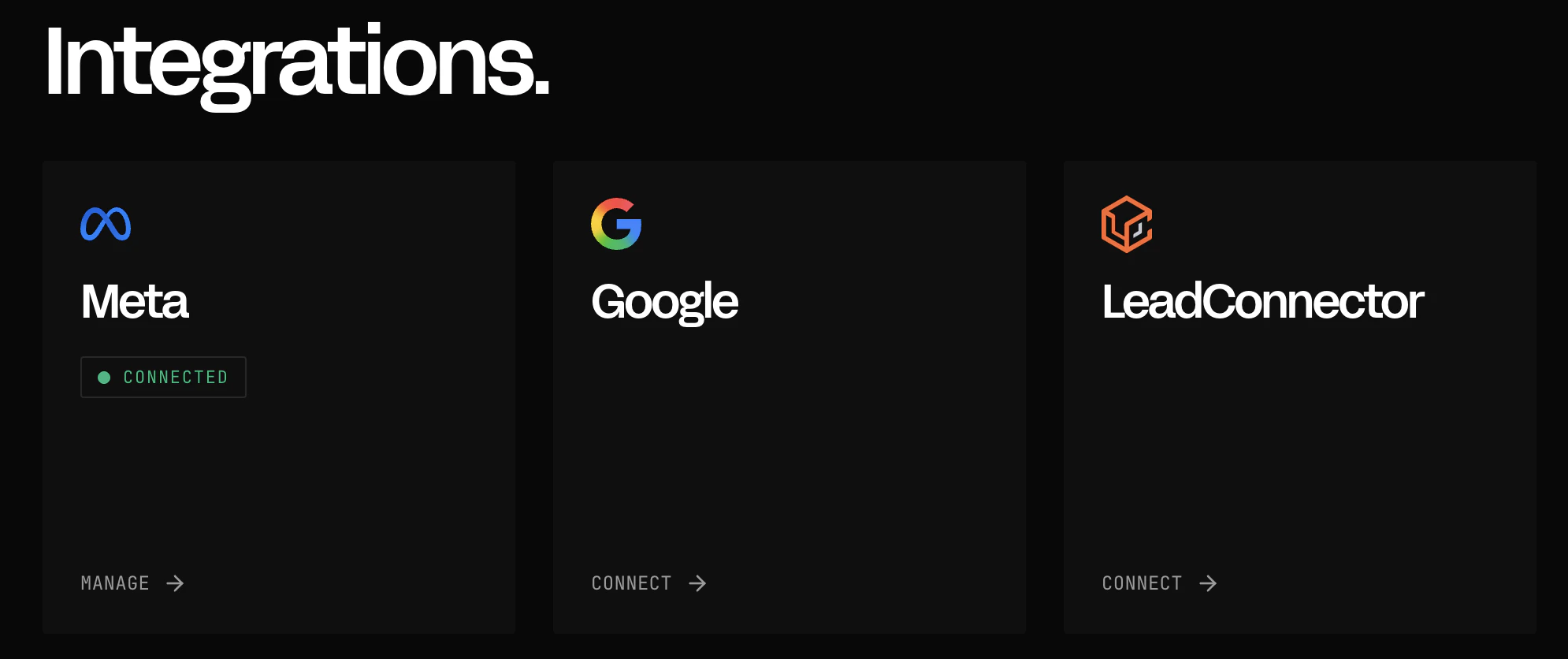
Click CONNECT on the Meta integration card.
Paste Access Token
Paste your System User Access Token and click CONNECT .
Connection Complete
Your Meta integration is now connected and ready to use with Olympus.
After connecting The Meta card on the Integrations page shows a Connected badge.
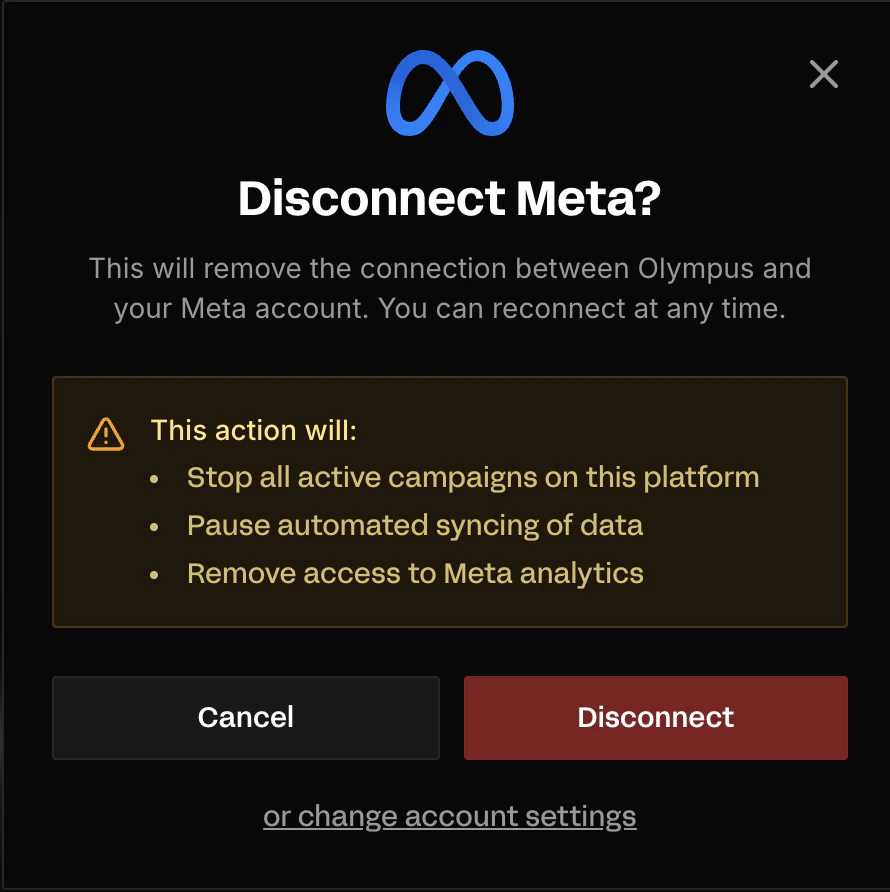
Click Manage in the bottom left corner of the card to open a pop-up where you can disconnect or change your account settings.
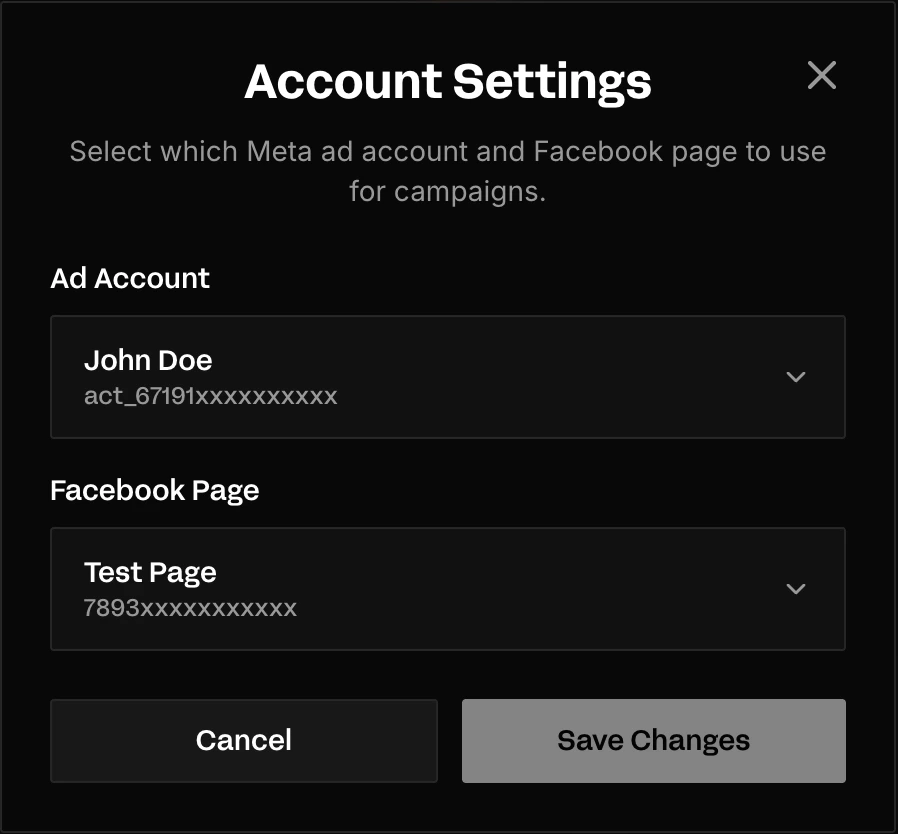
Changing account settings To change which Meta ad account or Facebook page Olympus uses for campaigns:
Click Manage on the Meta integration card, then click “or change account settings” at the bottom of the pop-up.
Select your preferred Ad Account and Facebook Page from the dropdowns.
Click Save Changes .
Only ad accounts and pages associated with your connected Meta Business account will appear in the dropdowns.
System User tokens set to “Never” expiration do not expire, so you will not need to reconnect periodically.
Never share your System User Access Token. If compromised, immediately revoke it from Business Settings and generate a new one.
Troubleshooting
If your token stops working, verify that:
Your app is still published
The System User still has all required asset permissions
The token was generated with “Never” expiration
Generate a new token if issues persist.
If certain features don’t work, check that:
Your System User has Admin role
All assets (Pages, Ad Accounts, Apps) are assigned with full access
All permissions were selected during token generation
If API calls fail, ensure your app is published:
Go to your app in Facebook Developers
Navigate to Publish section
Verify the app status shows as “Live”
What to do next Return to Integrations to check your other connections, or start building campaigns in Drive .